iPhone Not Charging? 12 Ways to Fix It
An iPhone not charging can mean several different things. The phone may not detect the cable at all, charge very slowly, stop around 80%, pause because of temperature, or refuse to charge because of a liquid warning. A cable, adapter, power source, charging port, battery setting, software issue, or hardware fault can all lead to similar symptoms.
Start by identifying what your iPhone is actually doing rather than trying every fix at random. The steps below follow Apple’s current troubleshooting guidance, while accounting for the differences between Lightning and USB-C iPhones, wired and wireless charging, and current iOS versions.
Quick Answer: What to Check First
If your iPhone suddenly stops charging, start with the charging path:
- Connect it directly to a known-good wall outlet and inspect the cable and adapter for damage.
- Make sure the connector is seated properly and check the charging port for visible debris.
- Check Settings > Battery for messages such as Slow Charger, Incompatible Charger, or a charging hold.
- Restart the iPhone and make sure it is running the latest version of iOS available for your model.
- If the phone is completely unresponsive, give it time to charge and then try a force restart.
Do not automatically treat an 80% limit, a Slow Charger message, or Charging On Hold as a hardware failure. Apple uses these features and protections to manage charging under certain conditions.
First, Work Out What “iPhone Not Charging” Really Means
Before changing anything, look at the symptom.
| What you see | What it may point to | Start with |
|---|---|---|
| No charging symbol or response | Power, cable, port, drained battery, or hardware | Fixes 1–3 and 9 |
| Low-battery icon but no startup | Very low battery or charging-path problem | Fix 9 |
| Charging icon appears but percentage barely moves | Weak charger, heavy use, heat, or battery condition | Fixes 1, 2, 4, and 10 |
| Charging starts and stops | Loose connection, debris, movement, or wireless alignment | Fixes 1, 3, and 7 |
| Works only when the cable is held at an angle | Debris, worn cable, or damaged port | Fixes 1, 3, and 12 |
| “Charging On Hold” | Temperature or charging-management condition | Fixes 4 and 6 |
| “Liquid Detected” or “Charging Not Available” | Moisture or a problem with the cable/connector | Fix 5 |
| “Slow Charger” | Charger is providing lower power than ideal; not necessarily a fault | Fixes 1 and 2 |
| “Incompatible Charger” | iOS detects a connected charger that is not charging | Fixes 1 and 2 |
| Stops at 80% or another selected level | Charge Limit, Optimized Battery Charging, or temperature | Fix 6 |
| Wired charging fails but wireless works | Cable, adapter, or wired port becomes more likely | Fixes 1–3 |
| Wireless charging fails but wired works | Alignment, case, wireless charger, or accessory | Fix 7 |
| Both wired and wireless charging fail | Software, battery, liquid damage, or hardware | Fixes 8–12 |
Apple’s current charge-speed documentation says iOS can display a Slow Charger message when a higher-wattage charger could improve charging. With iOS 26, an Incompatible Charger message can also appear in Settings > Battery when a connected charger is detected but is not charging. These messages do not automatically mean the iPhone itself is damaged.
Check the Battery Screen
While the iPhone is connected to power, open Settings > Battery.
Depending on your model and software, this screen can provide charging information, charging-time estimates, or messages explaining why charging is slower or temporarily paused. Current Apple documentation also provides model-specific battery settings under different menus, so do not assume an older Settings path applies to every iPhone.
Before You Start: Safety and a Simple Test Method
Stop troubleshooting if you find a frayed cable, broken connector, severely damaged adapter, a swollen iPhone, unusual heat, a burning smell, or obvious liquid damage.
Do not keep using an accessory that is physically damaged.
For ordinary charging problems, use a one-variable test. Change one component at a time:
- Start with your current cable, adapter, and wall outlet.
- Change only the cable.
- Put the original cable back and change only the adapter.
- Try another wall outlet.
- If your iPhone supports wireless charging, test that separately.
- Observe what changes before moving to the next component.
This is much more useful than changing the cable, adapter, outlet, settings, and charging method all at once.
1. Try a Different Cable and Power Adapter
Helps with:
A damaged cable, failing adapter, unsuitable charger, loose connection, or a charger that is providing too little power.
A charging system has several points of failure. The adapter supplies power, the cable carries it, and the iPhone’s charging circuitry receives it. A fault in any one part can look like an iPhone problem.
How to fix it
- Inspect the cable from end to end.
- Look for cuts, exposed wires, bent connectors, severe kinks, or discoloration.
- Connect the iPhone directly to the adapter without a hub or dock.
- Try a cable that you already know works with another compatible device.
- If that changes nothing, test a different compatible power adapter.
- Check Settings > Battery for a Slow Charger or Incompatible Charger message.
For Lightning iPhones, you need a Lightning-compatible cable. iPhone 15 models and later use USB-C.
Current iPhone charging requirements also vary significantly by model. Apple’s current fast-charge guidance says iPhone 18 Pro and iPhone 18 Pro Max can reach around 50% in 15 minutes with a 60W-capable USB-C setup using AVS and USB-PD 3.2. iPhone 17, 17 Pro, and 17 Pro Max can reach around 50% in 20 minutes with a 40W-or-higher adapter, while iPhone 17e and iPhone Air can reach around 50% in about 30 minutes with 20W or higher.
As of October 8, 2026, Apple’s online store lists iPhone 18 Pro, iPhone 18 Pro Max, iPhone Air, iPhone 17, iPhone 17e, and iPhone 16 as its current lineup. iPhone Duo is announced but listed for pre-order beginning October 16, so it should not be treated as an already available model on October 8.
For most users, you do not need to buy a high-wattage adapter simply because one exists. The important point is to use a compatible charger and cable appropriate for your model. A lower-power source can charge more slowly.
May not help if:
The port is damaged, the battery has failed, the phone is too hot or cold, or a software or hardware fault is preventing charging.
Warning:
Do not keep using a cable or adapter with damaged insulation, exposed wiring, melted plastic, or severe physical damage.
Wired/wireless:
This fix applies to wired charging. If wireless charging works normally, that result makes a wired cable, adapter, or port problem more likely.
You can also review Apple’s current fast-charging guidance when your main issue is charging speed rather than complete failure.
2. Change the Power Source
Helps with:
A faulty wall outlet, power strip, weak USB source, multi-port charger, computer port, hub, or car charging port.
A working cable can still appear useless when the power source is the problem.
How to fix it
- Disconnect the iPhone.
- Plug your adapter directly into a different wall outlet.
- Reconnect the cable firmly to the adapter and iPhone.
- Avoid a power strip for this test if a wall outlet is available.
- Avoid charging through a computer, hub, or multi-port accessory while diagnosing a slow or failed charge.
- Give the adapter adequate airflow. Do not cover it with bedding, clothing, or thick material.
Apple notes that multi-port chargers, computers, USB hubs, and car ports can provide less power than a dedicated charger. Its current charge-speed guide also says iPhone 15 models and later are limited to 7.5W when using a USB-A charger.
May not help if:
The same failure occurs with multiple known-good outlets and charging accessories.
Warning:
Never touch an electrical outlet or charger if a plug blade or other part is damaged or stuck. Get appropriate electrical help rather than trying to remove it yourself.
Wired/wireless:
For wireless charging, the charging pad still needs an adequate power adapter. Changing only the phone’s position will not fix a wireless charger that is not receiving enough power.
3. Check the Charging Port
Helps with:
A connection that cuts in and out, a connector that does not seat properly, or charging that works only when the cable is held in a certain position.
Debris can prevent the connector from making proper contact. A worn or damaged port can create a similar symptom.
How to fix it
- Disconnect the iPhone from power.
- Look carefully into the charging port in good lighting.
- Check for obvious lint, dust, or other debris.
- Reconnect the cable and see whether it seats normally.
- Test again using a known-good cable.
Apple provides guidance to keep connectors clean and dry, but it does not prescribe a general DIY scraping tool for digging inside the iPhone’s charging port.
Do not use a needle, pin, paper clip, knife, SIM tool, or other metal object. Do not pour liquid into the connector, and do not use compressed air as a substitute for safe cleaning.
If the port looks bent, broken, corroded, or physically loose, stop instead of forcing the cable.
May not help if:
The port is physically damaged or the cable itself is worn.
Warning:
If charging works only while the connector is pushed, tilted, or held at an angle, that is a reason to stop repeated testing and consider service.
Model/iOS considerations:
Lightning and USB-C connectors are physically different, but the basic diagnostic principle is the same: the connector should seat normally and make stable contact.
Wired/wireless:
If wireless charging works but wired charging consistently fails, the wired charging path deserves more attention.
4. Let a Hot or Cold iPhone Return to Normal
Helps with:
Charging that slows, pauses, or stops when the iPhone is unusually hot or cold.
iPhone has built-in temperature protections. Apple says charging, including wireless charging, can slow or stop when the device’s internal temperature is outside its normal operating range. You may see Charging On Hold on the Lock Screen.
How to fix it
- Stop demanding tasks such as gaming, video recording, or navigation while the phone is charging.
- Move the iPhone out of direct sunlight.
- Do not leave it charging in a hot parked car.
- If it is very warm, move it to a cooler environment and let it cool naturally.
- If it is extremely cold, move it into a normal indoor environment and let it warm gradually.
- Check Settings > Battery for charging-status information.
- Try charging again after the phone returns to a normal temperature.
Apple says iPhone is designed for use in ambient temperatures between 0°C and 35°C (32°F to 95°F). Extreme temperatures can change charging behavior.
May not help if:
The phone remains unusually hot when it is not being used or charging, or it shows physical damage.
Warning:
Do not use a refrigerator, freezer, heater, hair dryer, or other extreme method to force a temperature change.
Wired/wireless:
Temperature protection applies to both. Wireless charging can also produce additional heat.
5. Handle a Liquid-Detection Alert Safely
Helps with:
Messages such as Liquid Detected or Charging Not Available caused by moisture in the connector or a cable/accessory issue.
Do not treat a liquid warning as an ordinary charging problem. Charging through a wet connector can cause corrosion or permanent damage.
How to fix it
- Disconnect the cable from the iPhone.
- Disconnect the other end from the adapter or accessory.
- Do not reconnect it until the iPhone and cable are dry.
- Hold the iPhone with the connector facing downward and gently tap it against your hand to help remove excess liquid.
- Leave it in a dry area with airflow.
- After at least 30 minutes, try charging again.
- If the warning returns, leave the iPhone in a dry location with airflow and allow more time. Apple says complete drying can take up to 24 hours.
- If the connector is dry but charging still fails, disconnect and reconnect the charger from the wall and adapter as Apple describes.
Apple specifically says not to use an external heat source, compressed air, cotton swabs or paper towels inside the connector, or rice.
May not help if:
The warning occurs with a particular damaged cable or continues with multiple known-good Apple cables after the connector has dried.
Warning:
Do not keep charging a phone that has been submerged or has obvious liquid damage just because the warning disappears temporarily.
Wired/wireless:
If the iPhone supports wireless charging, wireless charging may be an alternative after ensuring the phone itself is dry. Do not place a wet phone on a wireless charger.
For the complete safety procedure, see Apple’s liquid-detection guidance.
6. Check Charge Limit and Optimized Battery Charging
Helps with:
An iPhone that appears to stop charging at 80% or another expected level.
Stopping at 80% does not automatically mean your battery, charger, or port is broken.
On iPhone 15 and later, Charge Limit lets you choose a maximum charging level. Optimized Battery Charging can instead pause charging around 80% and finish later when the iPhone predicts you are likely to unplug it.
How to fix it
For iPhone 15 and later:
- Open Settings.
- Tap Battery.
- Tap Charging.
- Check the selected Charge Limit.
- If Optimized Battery Charging is holding the charge, use Resume Charging when you need the iPhone to continue charging immediately.
Apple’s current iOS 27 guide uses Resume Charging for temporarily overriding Optimized Battery Charging.
For iPhone 14 and earlier:
- Open Settings.
- Tap Battery.
- Tap Battery Health & Charging.
- Check Optimized Battery Charging.
The setting path is therefore different depending on the iPhone generation.
With a Charge Limit below 100%, Apple says the iPhone may occasionally charge to 100% to maintain accurate battery-state estimates. Apple also says Optimized Battery Charging needs time to learn your routine before it reliably activates.
May not help if:
The iPhone does not start charging at all. A charging limit does not explain every charging failure.
Warning:
Do not permanently disable battery-management features simply because you saw an 80% pause. They are designed to reduce battery wear.
Wired/wireless:
Charge Limit and Optimized Battery Charging are not limited to one charging method.
7. Fix Wireless and MagSafe Charging
Helps with:
An iPhone that charges by cable but not on a wireless charger, charges inconsistently on a pad, or reports unexpectedly slow wireless charging.
Wireless charging depends on correct positioning, the charger, its power adapter, the phone’s case, nearby objects, and sometimes connected accessories.
How to fix it
- Connect the wireless charger to its power adapter before placing the iPhone on it.
- Put the iPhone on the charger with the display facing up.
- Center it according to the charger’s design.
- Remove a thick, metal, or battery case while testing.
- Remove cards, mounts, or other objects between the phone and charger.
- Disconnect unnecessary wired accessories from the iPhone.
- Make sure the iPhone has not shifted because of vibration.
- If using MagSafe and you placed the iPhone on the charger before connecting the charger to power, lift the iPhone off, wait three seconds, and place it back.
Apple’s current MagSafe documentation lists up to 25W peak wireless charging for certain current models when paired with the appropriate MagSafe charger and power adapter. The supported model and adapter combination matters, so do not assume every MagSafe-compatible iPhone charges at the same rate.
Apple’s general wireless-charging guidance says Qi-certified chargers can charge compatible iPhones, while newer charging solutions such as MagSafe and Qi2 can provide faster wireless charging depending on the model and accessory.
May not help if:
The wireless charger itself is faulty or the iPhone’s wireless charging hardware has failed.
Warning:
Keep sensitive magnetic-stripe or RFID items away from the space between the phone and charger.
Wired/wireless:
Wireless charging is useful as a diagnostic test. If wireless charging works reliably while wired charging does not, the cable, adapter, or charging port becomes a more likely place to investigate.
8. Restart Your iPhone and Update iOS
Helps with:
Temporary software problems, accessory-detection glitches, or charging behavior that began after a software problem.
Apple’s current major iPhone operating system is iOS 27, released on September 14, 2026. Apple provides an iOS 27 compatibility list covering iPhone 11 and later as well as the second- and third-generation iPhone SE.
How to fix it
- If the iPhone responds normally, restart it.
- Open Settings > General > Software Update.
- Install the latest version of iOS available for your specific model.
- Restart if requested.
- Connect the charger again.
- Recheck Settings > Battery.
Do not write instructions that assume every iPhone can run iOS 27. Older supported iPhones may remain on an earlier iOS generation, and an older device should be updated to the latest version Apple offers for that model.
May not help if:
The connector is physically damaged, the charger is defective, or the battery or charging circuitry has failed.
Warning:
Do not erase the iPhone or use Reset All Settings just because ordinary charging has stopped. Those are not standard first-line charging fixes.
Wired/wireless:
A restart can affect both charging methods, so compare the result with both when possible.
9. Charge a Drained iPhone, Then Force Restart
Helps with:
A completely drained iPhone, a black screen, a low-battery symbol that does not progress, or an iPhone that appears unresponsive.
A phone with an extremely low battery may need time connected to a reliable power source before it can start normally.
How to fix it
- Connect the iPhone to a known-good wall charger and cable.
- Let it charge for about 30 minutes.
- If it remains unresponsive, perform a force restart.
- On an iPhone 8 or later, including iPhone SE (2nd generation and later):
- Press and quickly release Volume Up.
- Press and quickly release Volume Down.
- Press and hold the side button until the Apple logo appears.
- Let the phone charge again after the force restart.
- If it still shows no usable response, the problem may require service.
For iPhone 7 and 7 Plus, the force-restart combination is different. Older Home-button models use another combination. Apple documents these model-specific procedures in its support guidance.
May not help if:
The phone is not receiving power, the charging port is damaged, the battery has failed, or the device has suffered liquid or physical damage.
Warning:
Do not repeatedly force restart an iPhone that is becoming abnormally hot. Also avoid interfering with an active update or restore.
If the broader problem is that the iPhone will not power on at all, our guide to How to Fix iPhone Won’t Turn On covers the related startup problem.
Wired/wireless:
For this test, use reliable wired power first. Do not assume wireless charging will revive every completely dead iPhone.
10. Check Battery Health
Helps with:
An iPhone with an aging battery, unusually poor runtime, reduced performance, or a battery-related service message.
An aging battery does not automatically explain every charging problem. However, battery condition becomes more important when both charging performance and battery runtime have deteriorated.
How to check it
On iPhone 15 models and later:
- Open Settings.
- Tap Battery.
- Tap Battery Health.
On iPhone 14 and earlier:
- Open Settings.
- Tap Battery.
- Tap Battery Health & Charging.
Apple says iPhone 15 models and later can show battery health, maximum capacity, cycle count, manufacture date, and first-use information.
Look for messages indicating significant degradation, an unexpected battery condition, or difficulty verifying the battery.
Apple states that batteries in iPhone 14 models and earlier are designed to retain 80% of their original capacity at 500 complete charge cycles under ideal conditions, while iPhone 15 models and later are designed for 80% at 1,000 cycles under ideal conditions. These are design targets under ideal conditions, not guarantees for every individual battery.
May not help if:
Battery Health looks normal and the problem occurs only with one cable, one outlet, or one charging method.
Warning:
Do not open the iPhone to inspect or replace the battery yourself. If the battery is swollen, the phone becomes unusually hot, or there is physical damage, stop using it and seek service.
Wired/wireless:
Poor battery health can affect the overall charging experience, but a healthy Battery Health reading does not rule out a defective charging port or charger.
For broader battery-care information, you can also read our guide to Best Settings for Maximum iPhone Battery Life.
11. Update or Restore With a Computer Using Recovery Mode
Helps with:
A software problem where the iPhone cannot start properly, remains stuck during startup, or presents a recovery/connect-to-computer screen.
This is not a routine fix for a simple charging problem. It belongs near the end of the troubleshooting process, after you have ruled out the charging path and obvious hardware causes.
Use Recovery Mode
- Make sure your Mac is updated. On Windows, install or update the Apple Devices app.
- Connect the iPhone to the computer with a USB cable.
- Open Finder on the Mac or Apple Devices on Windows.
- Put the iPhone into recovery mode according to its model.
- When the computer offers Update or Restore, choose Update first.
- Only consider Restore if updating does not solve the issue and you have a suitable backup.
For iPhone 8 or later and iPhone SE (2nd generation or later), Apple instructs users to press and quickly release Volume Up, press and quickly release Volume Down, and then hold the side button until the connect-to-computer screen appears. Older models use different combinations.
An Update attempts to reinstall or update iOS while preserving personal data. A Restore reinstalls iOS and erases the device’s data. Apple recommends trying Update before Restore.
May not help if:
The problem is a defective cable, damaged port, failed battery, liquid damage, or charging circuitry problem.
Warning:
Do not jump straight to Restore. If important information is not backed up, an erase can be a much bigger problem than the original charging issue.
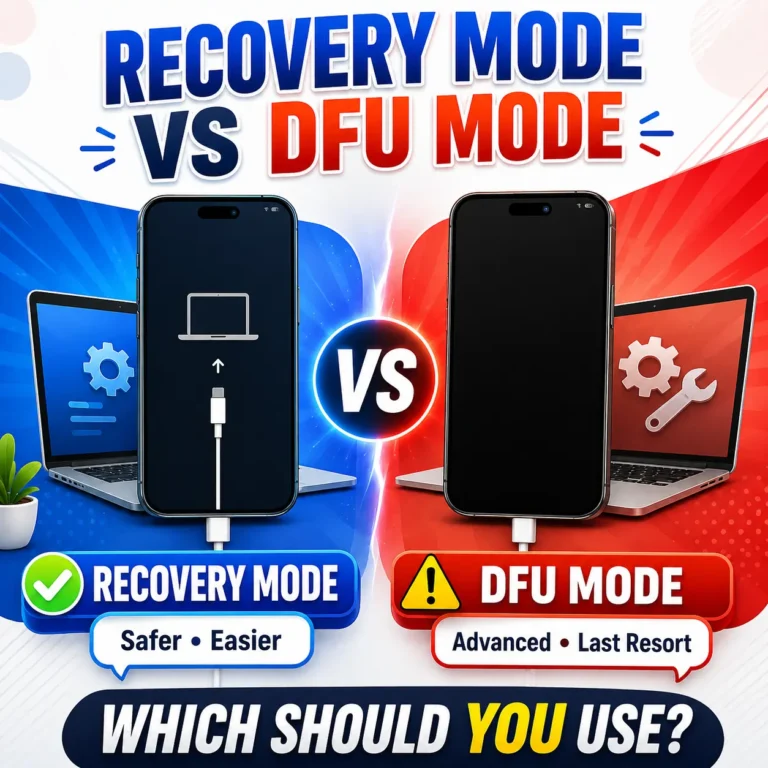
Do not confuse Recovery Mode with DFU mode. If you need to understand the difference, see our guide to Recovery Mode vs DFU Mode.
Wired/wireless:
Recovery Mode requires a computer connection and is therefore a wired diagnostic procedure.
12. Get Service: When Troubleshooting Should Stop
Helps with:
Problems that are increasingly likely to involve the charging port, battery, liquid damage, internal charging circuitry, or another hardware fault.
The goal of troubleshooting is not to keep trying more and more things. At some point, additional DIY attempts have little value and can increase the risk of damage.
Get professional help when:
- A known-good cable and adapter fail on multiple outlets.
- The charging port looks bent, loose, corroded, or physically damaged.
- Charging works only when the cable is held at an angle.
- A liquid-detection alert continues after the phone and cable have had adequate time to dry.
- The iPhone becomes unusually hot while idle or charging.
- The battery or screen appears swollen.
- Both wired and wireless charging fail after software troubleshooting.
- The phone has been submerged or suffered significant liquid exposure.
- Recovery Mode cannot update or restore the device.
Apple’s recovery-mode guidance says service may be necessary if recovery mode does not work or a required button is broken or stuck.
What to take to service
If the phone still powers on, back up important information first.
Bring the iPhone and, when relevant, the cable and power adapter you were using. Apple’s charging guidance also recommends having the charging accessories available when seeking help.
Use an Apple Store or Apple Authorized Service Provider where practical. For an independent repair shop, ask what parts will be used and what warranty the repair includes.
Repair or replace?
There is no single rule for every iPhone.
| Situation | Sensible next step |
|---|---|
| Relatively new iPhone with an isolated port or battery problem | Get a repair diagnosis |
| Older iPhone with a substantial repair | Compare the repair cost with the phone’s remaining usefulness |
| Repeated liquid or hardware failures | Get a diagnosis before deciding |
| Phone that cannot run the current major iOS generation | Consider whether a repair still makes sense for your needs |
Do not open the iPhone, replace the battery with an improvised kit, or probe the charging port with metal tools merely to avoid a service visit.
Charging Myths That Send People in Circles
“If my iPhone stops at 80%, the battery is broken.”
Not necessarily. A Charge Limit or Optimized Battery Charging can intentionally keep the phone around 80% under certain conditions. Temperature protection can also limit charging.
“A Slow Charger message means my charger is defective.”
No. Apple says the Slow Charger message means a higher-wattage charger could improve the charging experience. It does not by itself mean the iPhone or charger is faulty.
“Fast charging always destroys the battery.”
Apple’s charging-management features are designed to manage battery aging and charging behavior. Fast charging can generate more heat, but that is different from claiming that fast charging automatically ruins every battery.
“You must only use Apple’s charger.”
Apple supports compatible third-party charging accessories. The important issue is whether the accessory meets the necessary standards and is suitable for the iPhone and charging method you are using.
“You should never charge overnight.”
Modern iPhones use charging-management features that can reduce the amount of time the battery remains fully charged. Overnight charging is not automatically a fault condition.
“Wireless charging means the port no longer matters.”
Wireless charging is useful as a diagnostic alternative, but it does not repair a damaged Lightning or USB-C port. If wired charging remains unreliable while wireless charging works, the two charging paths should be treated separately.
How to Keep Charging Problems From Coming Back
Use the correct cable and adapter for your model, and replace accessories when they become visibly damaged.
Keep charging connectors dry. Avoid repeatedly bending cables at the same point, and do not force a connector into the port.
When charging wirelessly, keep the phone centered and remove objects that interfere with alignment.
Avoid charging in extreme temperatures. Apple recommends using iPhone within an ambient range of 0°C to 35°C (32°F to 95°F), and wireless charging can add heat.
Finally, treat charging messages as information rather than warnings of disaster. Slow Charger, Charging On Hold, and an 80% stopping point can each have a legitimate explanation.
Frequently Asked Questions
Why is my iPhone not charging even though the battery icon appears?
The iPhone may be receiving some power but not enough to increase the battery percentage quickly. Check the cable, adapter, power source, temperature, current app usage, and Battery settings. A Slow Charger message can indicate that the connected charger is providing less power than ideal.
Why is my iPhone charging slowly?
Common causes include a low-power charger, multi-port power sharing, computer or hub charging, intensive use while charging, wireless charging limitations, or temperature. Apple specifically notes that chargers providing 7.5W or less can take longer for wired charging and that wireless chargers below 10W can also be slower.
Why won’t my iPhone charge past 80%?
Check whether a Charge Limit is configured or whether Optimized Battery Charging is pausing charging. Also check for Charging On Hold if the phone is hot or cold. These situations are not automatically signs of a defective battery.
Why does my iPhone say “Incompatible Charger”?
With iOS 26, Apple says this message can appear in Settings > Battery when the system detects a connected charger that is not charging. Try another compatible cable, adapter, and power source.
Why does my iPhone only charge when I hold the cable at an angle?
That can point to debris, cable wear, or physical damage to the charging port. Stop forcing the connector into unusual positions. If cleaning does not resolve the problem and the symptom persists, professional inspection is the safer option.
Can I charge my iPhone when it says liquid was detected?
You should not reconnect the cable until the iPhone and cable are dry. Apple recommends disconnecting the cable, allowing airflow, waiting at least 30 minutes before retrying, and giving it up to 24 hours if necessary. Do not use heat, compressed air, foreign objects, or rice.
Why does my iPhone charge wirelessly but not with a cable?
That result makes the wired charging path more suspicious. Test another cable, adapter, outlet, and then inspect the port. It is not proof by itself that the port is defective.
Why does my iPhone not charge wirelessly?
Check alignment, remove thick or metal cases, remove objects between the phone and charger, make sure the charger is connected to power, and disconnect wired accessories while testing. Apple also recommends connecting the MagSafe charger to power before placing the phone on it.
Should I update to iOS 27 if my iPhone isn’t charging?
Use the latest version of iOS available for your model. iOS 27 is the current major iOS generation, but not every older iPhone supports it. Apple currently lists iPhone 11 and later and the second- and third-generation iPhone SE among iOS 27-compatible devices.
Can a bad battery cause an iPhone not to charge?
A degraded battery can cause poor runtime and other performance problems, but not every charging failure is caused by battery health. Check Settings > Battery > Battery Health on iPhone 15 models and later, or Battery Health & Charging on iPhone 14 and earlier.
When should I stop troubleshooting and get my iPhone repaired?
Stop when there is visible physical damage, swelling, persistent liquid damage, unusual heat, a damaged port, repeated charging failure with known-good accessories, or failure of both wired and wireless charging after basic troubleshooting.
Conclusion
An iPhone that is not charging does not always have a broken battery or charging port. First identify the exact symptom, then test the charging path one variable at a time.
Check the cable, adapter, outlet, and port before moving into software troubleshooting. Treat Slow Charger, Charging On Hold, liquid alerts, and an 80% charging limit as useful clues rather than automatic hardware failures.
For current iPhones, connector and charging capabilities differ considerably between Lightning, USB-C, MagSafe, Qi, and Qi2 configurations. iOS also continues to evolve, so the safest long-term wording is to use the latest iOS version available for the particular iPhone rather than hard-coding an old point release.
When known-good accessories fail, the port is damaged, liquid damage is involved, or both charging methods stop working, stop experimenting and get a proper diagnosis. That is usually more useful than continuing to cycle through increasingly aggressive DIY fixes.