
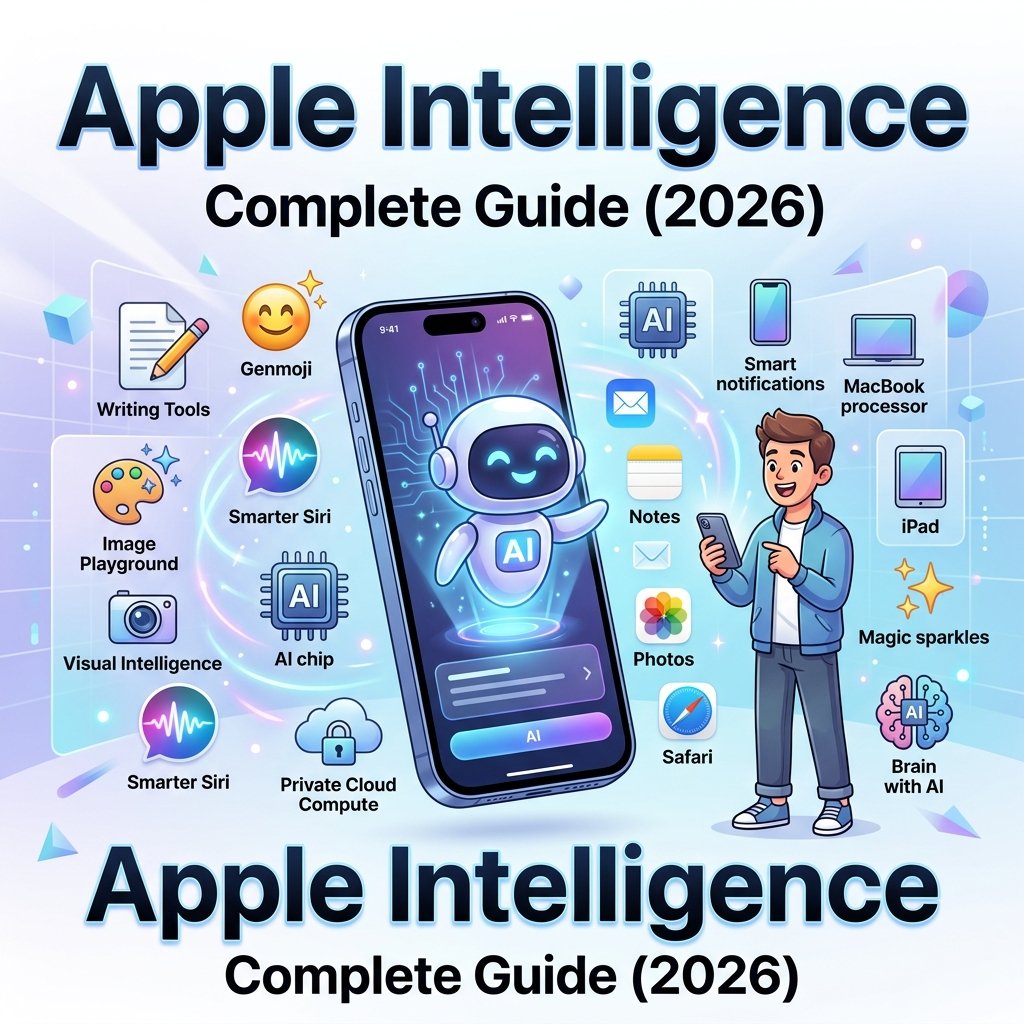
Apple Intelligence Features – The Complete 2026 Guide
Apple Intelligence features have quietly changed how millions of people use their iPhone, iPad, and Mac every day. If you’ve updated your device recently and noticed new writing suggestions, a smarter Siri, or a glowing edge around your screen when you talk to your phone, that’s Apple Intelligence at work.
This guide is updated for July 2026, and it covers everything currently available in iOS 26.1, iPadOS 26.1, and macOS 26.1, plus the next wave of features Apple has officially confirmed for this fall. We’ll walk through what each feature actually does, which devices support it, how to turn it on, and what to do if it’s not working the way it should.
No filler, no guessing about unreleased features. Just what’s real, what’s coming, and how to use it.
What Is Apple Intelligence?
Apple Intelligence is Apple’s built-in AI system for iPhone, iPad, Mac, Apple Watch, and Apple Vision Pro. Instead of living inside one chatbot app, it’s woven directly into the apps you already use, like Mail, Messages, Photos, and Notes.
Most requests are handled right on your device using its Neural Engine. When a task needs more processing power than your device can handle on its own, it’s sent to Private Cloud Compute, Apple’s private server system built specifically to avoid storing or exposing your data.
In plain terms: it’s AI that helps you write, search, organize photos, and get through your day faster, without turning your personal information into a product.
Who can use it? Anyone with a supported iPhone, iPad, or Mac, running current software, with their device and Siri language set to one of the supported languages, and located outside mainland China. We’ll break down the exact device list and language list further down.
What’s New Right Now vs. What’s Coming This Fall
This is where a lot of online guides get sloppy. Some features are live on your phone today. Others were only announced at WWDC 2026 and won’t ship until later this year. Mixing the two up leads to a lot of confused readers trying to find settings that don’t exist yet.
Here’s the honest breakdown.
Live Today (iOS 26.1, iPadOS 26.1, macOS 26.1)
- Writing Tools (rewrite, proofread, summarize)
- Genmoji and Image Playground
- Image Wand in Notes
- Visual Intelligence, including on iPad, Mac, and Apple Vision Pro
- Clean Up, Reframe, and Extend photo editing
- Priority Notifications and notification summaries
- Live Translation in Messages, FaceTime, Phone, and on supported AirPods
- ChatGPT integration inside Siri, Writing Tools, and Image Playground
- Smart Reply in Mail and Messages
- Workout Buddy, now also in Spanish
- AI-assisted Shortcuts
Announced at WWDC 2026, Arriving This Fall (iOS 27)
Apple confirmed a redesigned Siri experience, referred to as Siri AI, along with a dedicated Siri app. According to Apple’s own release notes, Siri AI will be available in beta later this year and requires an Apple Intelligence-enabled device set to a supported language. It’s starting in English only, and it will not initially be available in the EU on iOS, iPadOS, or watchOS.
Also confirmed for this wave:
- Call Context, which can surface relevant information (like a booking confirmation from Mail) while you’re on a call
- Expanded Visual Intelligence actions, including splitting a bill or checking nutrition info just by pointing your camera
- Spatial Reframing for photos
- Custom Siri voices with adjustable pitch, speed, and tone
- Safari tab auto-grouping and Notify Me alerts for price drops or restocks
- One-tap password fixes in the Passwords app
- Natural-language Calendar and Shortcuts creation
Quick tip: If a feature you’ve read about isn’t showing up in your Settings app yet, check whether it’s actually shipped or still listed as “coming later this year.” Most of the confusion around Apple Intelligence right now comes from this gap.
Which Devices Support Apple Intelligence
Apple Intelligence needs a chip powerful enough to run AI models locally, so it isn’t available on every device that can run the latest software.
iPhone
| Model | Apple Intelligence Support |
|---|---|
| iPhone 17 Pro Max, 17 Pro, Air, 17, 17e | Yes |
| iPhone 16 series (all models, including 16e) | Yes |
| iPhone 15 Pro, 15 Pro Max | Yes |
| iPhone 15, 15 Plus and earlier | No |
iPad
| Model | Apple Intelligence Support |
|---|---|
| iPad Pro (M1 and later) | Yes |
| iPad Air (M1 and later) | Yes |
| iPad mini (A17 Pro) | Yes |
| Older iPad models | No |
Mac
Every Apple silicon Mac (M1 through M5) supports Apple Intelligence. Intel Macs are not supported at all, regardless of software version.
Apple Watch and Apple Vision Pro
Apple Watch Series 9 and later, Apple Watch Ultra 2 and later, and Apple Watch SE 3 support Apple Intelligence features, but only when paired with an Apple Intelligence-enabled iPhone nearby. Apple Vision Pro (with M2 or later) is fully supported on its own.
Before you update or download the on-device models, it’s worth checking how much free space you actually have. Apple’s initial model download runs several gigabytes, and if your phone is already tight on storage, it’s one of the most common reasons setup gets stuck. Our iPhone storage calculator can help you check how much room you’ll need to clear first.
Software Requirements
To use Apple Intelligence, your device needs to be running at least:
- iOS 26 or iPadOS 26 (iOS 26.1 recommended for the widest language support)
- macOS Tahoe 26
- watchOS 26 (paired with a supported iPhone)
- visionOS 26
Apple typically ships small Apple Intelligence improvements with every point release, so keeping your software current matters more with this feature than with most others.
Supported Countries and Languages
As of iOS 26.1, iPadOS 26.1, and macOS 26.1, Apple Intelligence supports the following languages: English, Danish, Dutch, French, German, Italian, Norwegian, Portuguese, Spanish, Swedish, Turkish, Chinese (Simplified), Chinese (Traditional), Japanese, Korean, and Vietnamese.
Apple Intelligence is available in most countries and regions, including the European Union, as long as your device and Siri language are both set to a supported language. There are two exceptions worth knowing:
- Mainland China. Apple Intelligence isn’t available there yet, whether your device was purchased locally or your Apple Account region is set to mainland China.
- New Siri AI (fall 2026). This will launch in English only, and Apple has already confirmed it won’t be available in the EU on iOS, iPadOS, or watchOS at launch.
If you travel after setting up Apple Intelligence successfully, it will generally keep working in most other countries, as long as you don’t change your device or Siri language to something unsupported.
How to Turn On Apple Intelligence
- Update your iPhone, iPad, or Mac to the latest software version.
- Go to Settings > Apple Intelligence & Siri.
- Tap Turn On Apple Intelligence.
- Choose your device and Siri language.
- Stay connected to Wi-Fi and power while the on-device model finishes downloading.
The download is usually a few gigabytes, so it’s genuinely faster and more reliable overnight while the device is charging. If you’re not sure you have enough free space, check with the iPhone storage calculator before you start.
Every Apple Intelligence Feature Explained
Siri Enhancements
Even before the new Siri AI app arrives, current Siri has gotten noticeably better at handling real conversations. It understands follow-up questions, has more product knowledge, and lets you type your request instead of speaking it, which is useful in quiet places like meetings or libraries.
Writing Tools
Writing Tools shows up as a small toolbar wherever you’re editing text, in Mail, Notes, Pages, and plenty of third-party apps. It can:
- Rewrite a message in a different tone (Friendly, Professional, Concise)
- Proofread for grammar and spelling as you type
- Summarize a long email or document into a few bullet points
This is one of the most genuinely time-saving features for anyone who writes a lot of emails or messages during the day.
Genmoji
Genmoji lets you type a description, like “a cat wearing sunglasses on a surfboard,” and get a custom emoji back in seconds. You can also base a Genmoji on a photo from your library.
Image Playground
Image Playground generates original images from a text description or an existing photo, in a range of styles including sketch, illustration, and photorealistic. It’s built into Messages, Notes, and its own standalone app.
Image Wand
Image Wand lives inside Notes. Sketch something rough with your finger or Apple Pencil, circle it, and Image Wand turns it into a cleaner illustration that matches the style of your notes.
Visual Intelligence
Visual Intelligence turns your camera, or a screenshot of your screen, into a search tool. Point it at a restaurant and get reviews and hours. Point it at a flyer and it can pull out the date and add it straight to your calendar. It now works on iPhone, iPad, Mac, and Apple Vision Pro.
Photos and Photo Editing
Inside the Photos app, Apple Intelligence powers three editing tools:
- Clean Up removes unwanted objects or people from the background of a photo
- Reframe lets you adjust the angle or zoom of a photo after it’s already been taken
- Extend fills in the edges of a photo, useful when you need a different aspect ratio
Notification Summaries and Priority Notifications
Instead of a long list of individual alerts, Apple Intelligence can group and summarize notifications from busy apps, and it automatically bumps time-sensitive messages and emails to the top of your list.
Mail Features
Mail uses Apple Intelligence for Smart Reply suggestions, message summaries, and priority sorting, so the emails that actually need a response don’t get buried.
Messages Features
Messages includes Smart Reply, contextual suggestions (like adding something to Reminders straight from a text), and Live Translation, which automatically translates incoming and outgoing texts in a conversation.
Safari Features
Safari can summarize long articles and, with the fall 2026 update, will automatically group related tabs together and monitor pages for price drops or restocks through Notify Me.
Notes Features
Notes supports transcription summaries for voice recordings, plus Image Wand for turning sketches into illustrations.
ChatGPT Integration
Apple Intelligence includes an optional integration with ChatGPT, usable inside Siri, Writing Tools, and Image Playground. You’re asked for permission before any request is sent to ChatGPT, and it works without needing to create a separate OpenAI account, though creating one does unlock extra ChatGPT features. This integration is only available in regions where the ChatGPT app and service are offered.
Workout Buddy
Workout Buddy is an AI coach that uses your Apple Watch health data, like heart rate and pace, to give you real-time motivational feedback during a run, walk, cycle, or HIIT session. It’s now available in Spanish as well as English.
Shortcuts and Automation
Shortcuts can now use Apple Intelligence to analyze content before acting on it, like summarizing a voice memo and pulling out just the new information to add to an existing note.
Siri AI: What’s Coming This Fall
The headline announcement from WWDC 2026 was Siri AI, a redesigned assistant with its own dedicated app. A few things make it different from current Siri:
- Real conversations. You can ask open-ended questions, brainstorm, and have Siri AI reference earlier parts of the conversation.
- Personal context search. Ask it to find a photo from years ago or an email buried in your inbox, and it searches using natural language instead of exact keywords.
- Cross-device continuity. Start a conversation on your iPhone and pick it up later on your iPad through the dedicated Siri app.
- Custom voices. You’ll be able to adjust pitch, speed, and tone until Siri AI sounds the way you want.
Apple has been clear that this is a beta rollout starting in English, with the EU excluded at launch on iOS, iPadOS, and watchOS. If you’re the kind of person who likes to explore every setting on a new iPhone, it’s worth reading through our guide to hidden iPhone features you should enable, since several lesser-known Apple Intelligence toggles are easy to miss in Settings.
Privacy and Security: How Apple Intelligence Protects Your Data
Apple’s privacy pitch for Apple Intelligence comes down to two ideas: process as much as possible on your device, and when you can’t, don’t let anyone, including Apple, see the data.
On-device processing handles most everyday requests, like proofreading a text or generating a Genmoji, directly on your iPhone’s Neural Engine. Nothing leaves the device.
Private Cloud Compute (PCC) takes over for requests that need more computing power than your device has. Apple designed PCC specifically to avoid the usual trade-offs of cloud AI. According to Apple’s security documentation, PCC nodes intentionally exclude remote shell access and interactive debugging tools, which means even Apple’s own site reliability staff cannot bypass its privacy guarantees during an outage or incident.
Apple has also published a full Private Cloud Compute Security Guide and a Virtual Research Environment, letting independent security researchers verify these claims themselves rather than just take Apple’s word for it. As of mid-2026, Apple has started extending PCC’s most demanding workloads, like complex reasoning tasks, to run on Google Cloud infrastructure through a partnership with Google and NVIDIA, while keeping the same privacy guarantees in place.
Note: Turning off Apple Intelligence in Settings removes the on-device models from your phone entirely, so there’s no lingering AI data sitting on your device if you decide it’s not for you.
Apple Intelligence vs. ChatGPT, Gemini, and Galaxy AI
Apple Intelligence isn’t trying to be a standalone chatbot the way ChatGPT is. It’s built to work quietly inside the apps you already use, with privacy as the main selling point over raw model power.
Google’s Gemini and Samsung’s Galaxy AI tend to push further on customization and experimental features, often because they’re less constrained by on-device processing requirements. Apple’s approach trades some of that flexibility for tighter integration across iPhone, iPad, Mac, Apple Watch, and Vision Pro, plus the option to hand off harder requests to ChatGPT when you want a second opinion.
Neither approach is objectively better. If you want one AI assistant that quietly improves the apps you already use every day, Apple Intelligence is built for that. If you want a single, highly customizable chatbot experience, a dedicated app might still suit you better for certain tasks.
Common Limitations of Apple Intelligence
To keep expectations realistic, here’s what Apple Intelligence still doesn’t do well, or doesn’t do at all, as of July 2026:
- Hardware cutoff. Anything older than iPhone 15 Pro or an M1 Mac is excluded, permanently, since it comes down to Neural Engine capability, not just software support.
- Language gaps. Even with 16 supported languages, plenty of widely spoken languages, including Polish, Hindi, and Arabic, still aren’t supported for Apple Intelligence as of this writing.
- Staggered rollouts. Several features, like Call Context and Siri AI, are region- and language-limited even after they officially launch.
- Not available in mainland China. This has been the case since Apple Intelligence launched and remains true in July 2026.
- ChatGPT integration depends on regional availability. If ChatGPT itself isn’t offered in your country, the integration won’t work either, even if the rest of Apple Intelligence does.
Troubleshooting: Apple Intelligence Not Working
If Apple Intelligence is stuck, missing, or misbehaving, the fix is almost always one of these five things.
Stuck on “Downloading” or “Preparing”
This is the most common complaint, and it’s almost always a network or power issue rather than a broken device.
- Connect to Wi-Fi and avoid cellular data during the download.
- Plug in your device and leave the screen locked overnight.
- Restart the device once the download appears to have stalled.
- If it’s still stuck after a full night, try switching your Siri language to something else and then back to your preferred language.
The Toggle Won’t Stay On
- Go to Settings > General > Software Update and confirm you’re on the latest version.
- Make sure Siri and Spotlight are both enabled, since Apple Intelligence depends on them.
- Go to Settings > General > Transfer or Reset iPhone > Reset > Reset All Settings. This won’t erase your data, but it does reset network and preference settings that can be quietly blocking the feature.
Region or Language Errors
Double-check that both your device language and your Siri language are set to the same supported language. A mismatch between the two is one of the most overlooked causes of Apple Intelligence simply refusing to appear.
When Nothing Else Works
If you’ve tried everything above and Apple Intelligence still won’t activate on an eligible device, the more advanced fix is backing up your device, then erasing it and setting it up as new. If you get to this point, it’s worth understanding the difference between a standard reset and deeper recovery options first. Our guide on Recovery Mode vs. DFU Mode explains when each one is actually necessary.
And if the real problem is that your device isn’t responding at all rather than just Apple Intelligence specifically, start with our guide on how to fix an iPhone that won’t turn on before attempting any kind of restore.
Frequently Asked Questions
Is Apple Intelligence free?
Yes. It’s included with iOS, iPadOS, and macOS at no extra cost on supported devices. Some ChatGPT features do require a separate paid OpenAI account if you want to go beyond the free tier.
Does Apple Intelligence work on Intel Macs?
No. Apple Intelligence requires Apple silicon (M1 or later). Intel Macs cannot run it, regardless of macOS version.
Is Apple Intelligence available in my country?
Most likely yes, as long as your device and Siri language are set to a supported language and you’re not in mainland China. Some individual features, like the upcoming Siri AI and Call Context, have narrower regional availability at launch.
Do I need an internet connection to use Apple Intelligence?
Not always. Many features, like Writing Tools and Genmoji, work fully on-device, even offline. More complex requests that route through Private Cloud Compute do need an internet connection.
What’s the difference between Apple Intelligence and Siri?
Siri is the voice assistant. Apple Intelligence is the broader AI system that powers Siri’s improvements, along with everything else, from Writing Tools to Genmoji to Visual Intelligence, across your apps.
Will older iPhones ever get Apple Intelligence?
Unlikely. The limitation comes down to Neural Engine hardware, not a software restriction Apple could lift with an update.
Is my data used to train Apple’s AI models?
Apple states that personal data processed through Apple Intelligence and Private Cloud Compute is used only to fulfill your specific request and isn’t retained afterward. For the technical details, Apple’s own Private Cloud Compute security documentation covers exactly how that’s enforced.
Conclusion
Apple Intelligence in July 2026 is a genuinely different product than it was at launch. Writing Tools, Genmoji, Visual Intelligence, and Live Translation are mature, reliable features you can use today across 16 languages and most regions worldwide.
The bigger shift, Siri AI and its dedicated app, is still a few months out and starting in English only. If you’re on a supported device, the best move right now is to make sure you’re running iOS 26.1 or later, confirm your device and Siri languages match, and explore the features that are already live before the next wave arrives this fall.
If Apple Intelligence still isn’t showing up after working through the troubleshooting steps above, it’s worth double-checking your device’s storage and update history before assuming something’s actually broken.





2 Comments