
30 Hidden iPhone Features You Should Enable Today
Most iPhone owners use maybe a third of what their phone can actually do. That’s not a knock on anyone. Apple buries a lot of good stuff in Settings, and it rarely announces the small stuff on stage.
These hidden iPhone features are the ones that quietly showed up in iOS 26 and its later updates, through version 26.5.1. Some arrived at launch. Others slipped in with a point update and never got a headline.
This guide covers 30 of them, grouped by what they actually help you do: protect your privacy, save battery, shoot better photos, move faster through your day, and make your phone easier to use if you have accessibility needs. Every entry tells you what the feature does, why it’s worth turning on, exactly where to find it, and which iPhones and iOS versions support it.
You don’t need to enable all 30 today. Pick a few that solve a problem you actually have, and go from there.
Good to Know: This guide is verified against iOS 26.5.1, current as of July 2026. Apple previewed iOS 27 at WWDC on June 8, 2026, but it hadn’t shipped to the public yet at the time of writing, so everything below reflects what you can use right now.
Hidden Privacy Features
Privacy settings on the iPhone rarely get turned on by default, since Apple leaves the choice to you. These five are worth a few minutes of your time.
1. App Privacy Report
App Privacy Report shows you exactly how often each app on your phone accesses your camera, microphone, location, and contacts, and when it happened in the past seven days. It also lists which websites your apps are quietly contacting in the background.
Most people assume Apple’s privacy labels on the App Store are enough. Those labels only tell you what an app might do. This report shows you what it actually did, this week, on your own phone.
How to enable it: Go to Settings > Privacy & Security > App Privacy Report, then tap Turn On App Privacy Report.
Requirements: iOS 15.2 or later, so nearly every iPhone in use today supports it.
Apple’s own App Privacy Report guide explains that the report only starts collecting data once you turn it on, so give it a day or two before checking back.
Pro Tip: Check this report once a week. If you spot an app using your microphone at odd hours, that’s your cue to review its permissions.
2. Hide My Email
Hide My Email creates a random, working email address that forwards to your real inbox. Use it for newsletters, app sign-ups, or any site you don’t fully trust.
If that site ever gets breached or starts spamming you, you delete the alias and the problem disappears. Your actual email address was never exposed.
How to enable it: Settings > [your name] > iCloud > Hide My Email > Create New Address. You can also generate one on the fly during any Safari sign-up form by tapping the suggested “Hide My Email” option above the keyboard.
Requirements: Needs an active iCloud+ subscription, available on any iPhone running a reasonably recent iOS version.
3. Sensitive Content Warning
This feature blurs images and videos that may contain nudity before you see them, in Messages, AirDrop transfers, FaceTime video messages, and Contact Posters in the Phone app. All the scanning happens on your device. Apple never sees the content, and neither does anyone else.
It’s a genuinely useful setting for anyone who wants a layer of protection against unwanted images, not just for younger users.
How to enable it: Settings > Privacy & Security > Sensitive Content Warning, then toggle it on.
4. The carrier location-precision limiter
Since iOS 26.3, you can limit how precisely your mobile carrier can pinpoint your location. Instead of your exact address, your carrier only sees your general area.
How to enable it: Settings > Mobile Service > Mobile Data Options.
Important: Your carrier has to support this feature for it to work. Availability depends on where you live and which network you’re on, so don’t be surprised if the option looks different or isn’t available yet.
5. Safety Check
Safety Check walks you through exactly who and what has access to your data, then lets you reset all of it in one motion. It was built for people leaving a relationship where their partner had access to shared accounts, locations, or devices, but it’s useful any time you want a clean privacy reset.
How to enable it: Settings > Privacy & Security > Safety Check > Manage Sharing & Access.
Image Suggestion: Screenshot of the Privacy & Security menu with App Privacy Report and Safety Check visible.
Alt text: iPhone Privacy & Security settings showing App Privacy Report and Safety Check options.
Security Features
Privacy and security overlap, but these settings are specifically about keeping your device and accounts safe if your phone is ever lost, stolen, or picked up by someone else.
6. Stolen Device Protection
This is one of the more important security additions Apple has made in years. When your iPhone is away from familiar locations like home or work, Stolen Device Protection requires Face ID or Touch ID for sensitive actions, with no passcode fallback. It also adds a security delay before someone can change critical settings like your Apple ID password.
Passcodes can be watched over your shoulder or guessed. Face ID and Touch ID can’t be copied that easily, which is exactly why this feature closes a real gap.
How to enable it: Settings > Face ID & Passcode > Stolen Device Protection.
Requirements: iOS 17.3 or later.
7. Face ID–locked Hidden Photos album
You probably already know you can hide photos on your iPhone. Fewer people know that the Hidden album itself can be locked behind Face ID. That means even if someone unlocks your phone, they still can’t open your hidden photos without a second authentication.
How to enable it: Settings > Photos > scroll to Use Face ID (or Touch ID) to lock the Hidden and Recently Deleted albums.
8. Face ID app locking
You can lock individual apps behind Face ID, and optionally hide them from your Home Screen entirely so they only show up in a specific search or gesture. This is worth doing for banking apps, health apps, or anything with financial or medical information.
How to enable it: Touch and hold the app icon, then tap Require Face ID.
9. The Passwords app and passkeys
The Passwords app stores every credential, current and historical, with end-to-end encryption across your devices. It supports passkeys, which replace traditional passwords with a system tied to Face ID or Touch ID that can’t be phished the way a typed password can.
You can also create Shared Password Groups so a family or small team can access the same set of logins without texting passwords back and forth.
How to enable it: Open the Passwords app directly, or go to Settings > Passwords.
| Security Feature | Minimum iOS Version | Notes |
|---|---|---|
| Stolen Device Protection | iOS 17.3 | Requires Face ID/Touch ID, no passcode fallback |
| Face ID–locked Hidden album | iOS 16 or later | Works on any Face ID or Touch ID iPhone |
| Face ID app locking | iOS 18 or later | Per-app control, can hide from Home Screen |
| Passwords app + passkeys | iOS 15 or later (passkeys need iOS 16+) | End-to-end encrypted, syncs across devices |
Battery Features
Battery complaints spike every time Apple ships a visually heavier interface, and iOS 26’s Liquid Glass design is no exception on older phones. These three settings help.
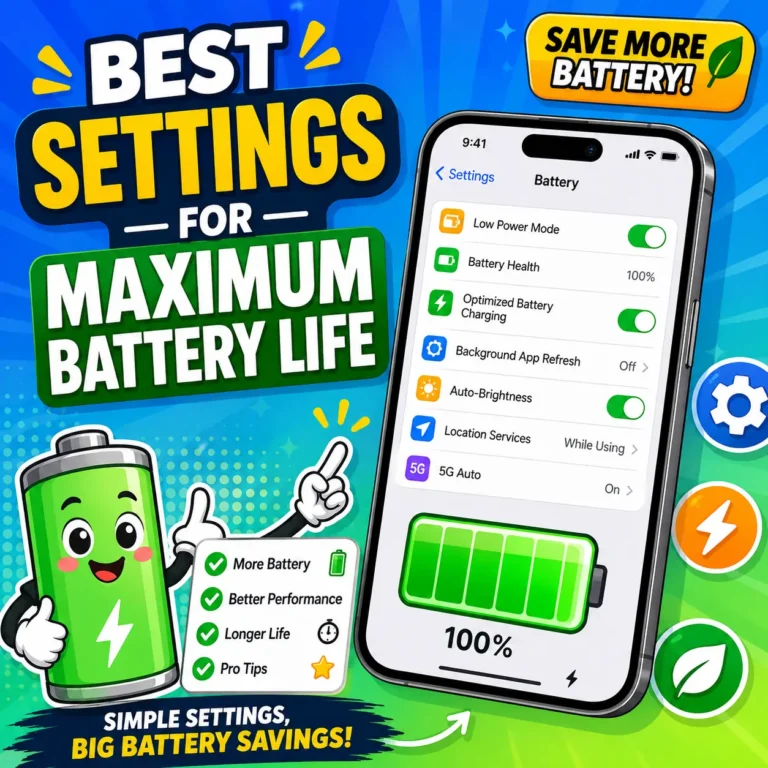
10. Adaptive Power Mode
Adaptive Power Mode quietly adjusts brightness, screen refresh rate, and background activity throughout the day based on how you actually use your phone. It’s gentler than Low Power Mode, so you get some battery savings without your phone feeling sluggish.
How to enable it: Settings > Battery > Power Mode > Adaptive Power.
Requirements: iPhone 15 Pro or later only. If you don’t see this option, your phone doesn’t support it yet.
Warning: Some users report that Adaptive Power Mode can throttle performance more than expected on hot days. If your phone feels sluggish and isn’t overheating, it’s fine to turn this off and rely on Low Power Mode instead when your battery runs low.
11. Charging time estimate
iOS 26 now shows you how long it will take to finish charging, right on your Lock Screen when you plug in. It works out the estimate based on the power your charger is actually delivering.
How to enable it: No setup needed. Plug in your iPhone and check the Lock Screen, or open Settings > Battery any time to see it again.
12. Optimized (Limited) Battery Charging
This setting slows down the last stretch of charging when your battery would otherwise sit at 100% for hours, which is one of the biggest contributors to long-term battery wear. Over a year or two, this alone can meaningfully extend your battery’s usable lifespan.
How to enable it: Settings > Battery > Battery Health & Charging > Charging Optimization.
Accessibility Features
These settings exist under Accessibility, but plenty of people without a specific accessibility need find them genuinely helpful too.
13. Adjustable Haptic Touch duration
If you’ve ever felt like your iPhone makes you wait a beat too long before a long-press menu shows up, you can shorten that delay.
How to enable it: Settings > Accessibility > Touch > Haptic Touch, then choose Fast instead of Default.
14. Background Sounds
Background Sounds plays continuous white noise, rain, or ocean sounds, with adjustable volume balance and a sleep timer. It’s built into iOS, so you don’t need a separate app for it.
How to enable it: Settings > Accessibility > Audio & Visual > Background Sounds. Once it’s on, you can add a quick toggle to Control Center for one-tap access.
15. Reduce Transparency
If the frosted, translucent Liquid Glass look in iOS 26 makes text harder to read for you, Reduce Transparency swaps it for solid backgrounds instead.
How to enable it: Settings > Accessibility > Display & Text Size > Reduce Transparency.
16. Motion and animation reduction
For anyone sensitive to motion, iOS lets you tone down or disable the zoom and parallax animations that play throughout the interface, which can otherwise trigger discomfort.
How to enable it: Settings > Accessibility > Motion > Reduce Motion.
Image Suggestion: Side-by-side screenshot comparing Liquid Glass with Reduce Transparency off versus on.
Alt text: iPhone Reduce Transparency accessibility setting before and after comparison.
Camera Features
The iPhone camera hides more tools than most people realize, and none of them require buying a new phone.
17. Recording video from Photo mode
Long-press the shutter button while you’re in Photo mode, and your iPhone starts recording video immediately, without switching modes. It’s the fastest way to catch a moment you almost missed.
18. Live Text
Live Text lets you copy text straight out of the camera viewfinder or any photo already in your library, no typing required. Point your camera at a sign, a recipe card, or a business card, and the text becomes selectable.
19. Visual Look Up
Visual Look Up identifies plants, pets, landmarks, and artwork from a photo. Open the photo, swipe up, and tap Look Up. Since it debuted, Apple has expanded it to cover food, artwork, and more specific categories like mammals or birds.
How to use it: Open a photo in the Photos app, swipe up, then tap the relevant Look Up option if one appears.
Good to Know: Visual Look Up doesn’t always find a match. If the lighting is poor or the subject isn’t clear, it may return nothing at all. That’s expected, not a bug.
20. Level Indicators
A simple on-screen guide helps you keep horizons and vertical lines straight while shooting, which is especially useful for landscape or architecture photos.
21. Make Key Photo
Live Photos capture a few seconds around the moment you tap the shutter. Make Key Photo lets you scroll through those frames and pick the exact one you actually want as the still image, instead of settling for whatever frame Apple picked automatically.
How to use it: Open a Live Photo, swipe up, tap Edit, then use the frame selector at the bottom to choose a new key photo.
22. AirPods as a remote shutter and external mic
With the Camera app open, a quick double-tap on an AirPod takes a photo, which is handy for group shots or when your phone is set up across the room on a tripod. AirPods can also work as an external microphone for cleaner audio when you’re recording video from a distance.
How to enable the mic option: Open Control Center while recording video, tap Camera Controls, then select your AirPods as the audio input.
Apple Intelligence Features
Apple Intelligence rolled out gradually through iOS 26 and its updates, and a few of its most useful tools are easy to miss because they show up inside other apps rather than as a standalone feature.
23. Screenshot Visual Intelligence
Take a screenshot, tap the thumbnail, and you’ll see Ask and Image Search buttons. Ask sends the screenshot along with a typed question to ChatGPT, while Image Search finds visually similar results. You can also draw over a specific part of the screenshot to focus the question on just that area.
Apple explains in its Apple Intelligence and privacy guide that more complex requests are handled through Private Cloud Compute, which uses the same security protections as your iPhone’s Secure Enclave and never stores your data once the request is complete.
24. Live Translation
Live Translation works inside Messages, Phone calls, and FaceTime to translate conversations in something close to real time. It’s a genuine help for reaching family, clients, or friends who speak a different language, without opening a separate translation app mid-conversation.
25. Live call screening
When an unknown number calls, tap Screen Call to see a real-time transcript of what the caller is saying before you decide whether to answer, decline, or let it go to voicemail. It’s one of the more practical additions to the Phone app in years, and it noticeably cuts down on the guessing game with spam calls.
Hidden Gestures
These three gestures work system-wide, and once you learn them, they’re hard to give up.
26. Back Tap
Double-tap or triple-tap the back of your iPhone to trigger an action you choose, like taking a screenshot, opening Control Center, turning on the flashlight, or running a Shortcut.
How to enable it: Settings > Accessibility > Touch > Back Tap, then set your double-tap and triple-tap actions separately.
27. Two-finger keyboard trackpad
Press and hold on the keyboard’s space bar area with two fingers, and it turns into a trackpad you can slide around to move your text cursor precisely. This is far more accurate than trying to tap directly on a word to place your cursor.
28. Three-finger undo and redo
Swipe three fingers left to undo your last action, or swipe right to redo it. This works across most of iOS, not just in specific apps, so it’s worth building into muscle memory.
Useful Settings and Everyday Time-Savers
These last few are quick to set up individually, but together they save real time every week.
29. StandBy mode
Lay your iPhone on its side while it’s charging, and StandBy turns the screen into a bedside display showing the time, your calendar, or widgets you choose. It works with any MagSafe or standard charging stand, and an Always-On display is available on supported Pro models.
How to enable it: Settings > StandBy, then toggle it on and connect your iPhone to a charger in landscape orientation.
30. Quick wins worth setting up today
- Custom snooze duration: Open the Clock app, tap an alarm, then tap Snooze Duration to set anywhere from 1 to 15 minutes instead of the default 9.
- Custom ringtones from the Files app: Save an MP3 or M4A file, tap and hold it, then choose Use as Ringtone, no GarageBand required.
- NameDrop: Hold two iPhones close together to instantly share contact details.
- Offline Maps: Download an area in Apple Maps ahead of a trip so navigation still works without signal.
- Wi-Fi password sharing: Hold your iPhone near a friend’s device that’s trying to join your network, and tap Share Password.
- Shazam in Control Center: Add the Recognize Music control so you can identify a song without opening a separate app.
Image Suggestion: Screenshot of a customized Control Center including the Shazam and Flashlight controls.
Alt text: iPhone Control Center customization showing Shazam music recognition button added.
Feature Compatibility at a Glance
| Feature | Requires | Available Since |
|---|---|---|
| Adaptive Power Mode | iPhone 15 Pro or later | iOS 26 |
| Stolen Device Protection | Face ID/Touch ID iPhone | iOS 17.3 |
| Action Button | iPhone 17e, 16e, 15 Pro and later | iOS 17 |
| Camera Control | iPhone 16 and 17 series | iOS 18 |
| Live Translation | Apple Intelligence–compatible iPhone | iOS 26 |
| Back Tap | iPhone 8 and later | iOS 14 |
| StandBy | Any iPhone running iOS 17+ | iOS 17 |
If your iPhone suddenly stops responding after adjusting settings like these, don’t panic before trying a basic restart first. For anything more serious, this guide on how to fix an iPhone that won’t turn on walks through the troubleshooting steps in order.
FAQs
What are the best hidden features in iOS 26?
Some of the most useful are App Privacy Report, Stolen Device Protection, Adaptive Power Mode, Back Tap, and StandBy mode. They cover different needs, so the “best” one really depends on whether you care most about privacy, battery life, or everyday convenience.
How do I find hidden settings on my iPhone?
Most of them live inside Settings > Privacy & Security, Settings > Accessibility, and Settings > Battery. A good habit is to scroll through each of these three menus once a season, since Apple adds new options there without much announcement.
Does Adaptive Power Mode work on every iPhone?
No. Adaptive Power Mode requires an iPhone 15 Pro or later. If the option doesn’t appear under Settings > Battery > Power Mode, your device doesn’t support it, and Low Power Mode is your best alternative.
What is App Privacy Report and how do I turn it on?
App Privacy Report shows how often each app has accessed sensitive data like your camera, microphone, and location over the past seven days. Turn it on at Settings > Privacy & Security > App Privacy Report, and give it a day or two to start collecting data.xact location?
Since iOS 26.3, you can go to Settings > Mobile Service > Mobile Data Options and limit how precisely your carrier can track you. Keep in mind your carrier has to support this feature on their end, so it may not be available everywhere yet.
Do hidden iPhone features work on older iPhones?
Many do, especially gestures like Back Tap and accessibility settings like Reduce Transparency. Newer features tied to specific hardware, like Adaptive Power Mode or Camera Control, only work on recent models, which is why this guide lists requirements next to each feature.
What new features is iOS 27 expected to bring?
Apple previewed iOS 27 at WWDC on June 8, 2026, but hadn’t released it publicly at the time of this guide. Once it ships, expect Apple to continue the same pattern of quietly adding small, genuinely useful features in the months that follow, the same way it did throughout iOS 26.
How often does Apple add new features outside of the big yearly update?
Quite often. iOS 26.3, 26.4, and 26.5 each introduced meaningful changes, from the carrier location limiter to encrypted messaging between iPhone and Android, without a dedicated announcement event. Checking Settings > General > Software Update regularly is the easiest way to stay current.
Conclusion
Most of what makes the iPhone genuinely useful isn’t announced during a keynote. It’s sitting quietly in Settings, waiting for someone to open the right menu.
These 30 hidden iPhone features cover privacy, security, battery life, accessibility, photography, Apple Intelligence, gestures, and everyday convenience. You don’t need to turn all of them on today. Start with two or three that solve something you’ve actually been annoyed by, like slow long-press menus, a battery that never seems to last, or wondering who’s really accessing your data.
Apple previewed iOS 27 at WWDC in June 2026, so more of these small, unannounced improvements are almost certainly on the way. For now, everything above works right now, on iOS 26.5.1, and is worth your ten minutes.
One Comment