Best Apple Reminders Tips You’ll Actually Use in 2026
If you only use Apple Reminders to jot down “buy milk” and hope you remember to check it later, you’re using maybe 10% of what the app can do. The best Apple Reminders tips go way beyond typing a task and hoping for the best — they turn a plain to-do list into something that actually keeps you on top of your day.
Reminders has quietly become one of the most capable apps on iPhone. Between Apple Intelligence, the newer Urgent alert system, and features borrowed straight from Apple Calendar, it’s not the sticky-note app it used to be. Most people just haven’t had a reason to dig past the basics.
This guide is for anyone who already uses Reminders casually — you add a task here and there — but hasn’t touched Smart Lists, tags, or the alert features Apple added over the past year. By the end, you’ll know how to capture tasks faster, organize them so they don’t pile up, use Apple Intelligence where it actually helps, and avoid the small setup mistakes that make reminders fail silently.
One quick note before we start: everything here reflects what’s actually shipping in iOS 26 as of July 2026. Apple has also announced a natural-language typing feature for iOS 27, and we’ll flag exactly where that stands later on, so you’re not left wondering why a feature in some other article isn’t showing up on your phone yet.
Why Apple Reminders Is More Powerful Than You Think
For years, Reminders had a reputation problem. It worked, but it felt basic next to apps like Todoist or Things — no tags, no real automation, a plain list and not much else.
That changed gradually, then quickly. Starting with iOS 26, Apple rebuilt the app’s interior logic even though the outside redesign (the new Liquid Glass look) gets more attention. Smart Lists became genuinely useful, Apple Intelligence started sorting your tasks for you, and Apple added an alarm-style alert system that borrows straight from how you’d expect a dedicated task manager to behave.
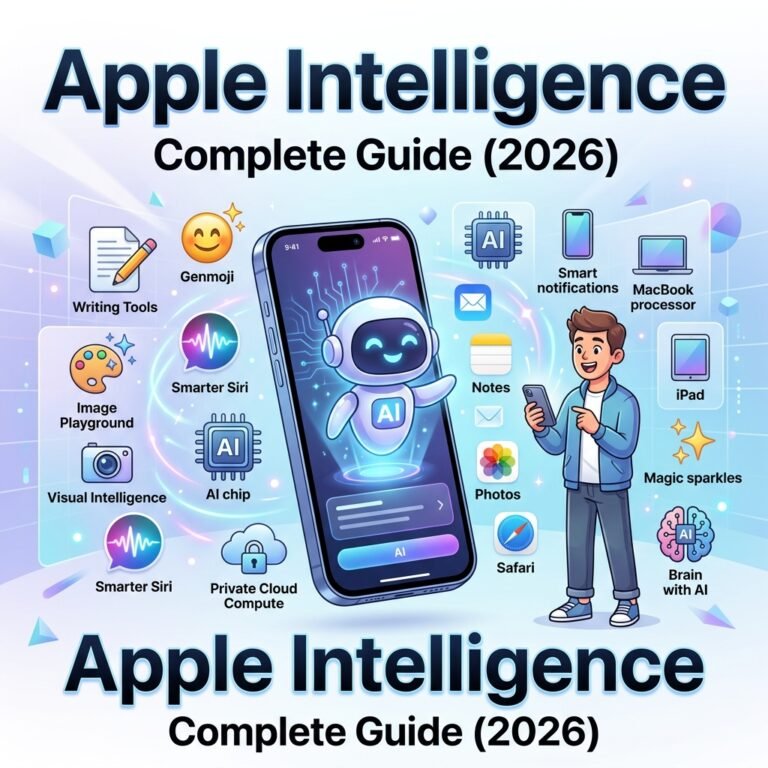
The Apple Intelligence side of this is worth understanding on its own, since it touches more than just Reminders — if you want the full picture of what Apple Intelligence does across your iPhone, our Apple Intelligence features guide breaks down what’s live right now versus what’s still on the roadmap.
The short version: if the last time you seriously looked at Reminders was a couple of years ago, it’s a different app now. The tips below assume you’re starting from “I use it for basic to-dos” and want to get to “I actually trust this to run my day.”
Quick-Capture Tips (Getting Tasks In Fast)
The single biggest reason people abandon a to-do app isn’t the organization — it’s friction at the capture stage. If adding a task takes more than a few seconds, you stop bothering, and tasks live in your head instead. Here’s how to get things into Reminders almost instantly.
Reminders’ fastest capture methods:
- Say “Remind me to…” to Siri, starting with the verb
- Tap the new Reminders shortcut in Control Center
- Swipe left on a missed call in the Phone app
- Share an email, note, or webpage directly to Reminders
- Type a task straight into any list’s input field
Use Siri’s verb-first phrasing for reliable parsing
Siri is genuinely good at creating reminders, but it’s picky about phrasing in a way most people don’t realize. Start your sentence with the verb: “Remind me to email the landlord tomorrow at 9am” works consistently. Skip the verb — just saying “email the landlord” — and Siri sometimes opens Mail instead of creating a task.
This trips people up because it feels like it should just understand either phrasing. It mostly does, except when the sentence sounds more like a command to another app. Starting with “remind me to” removes that ambiguity almost every time.
Best practice: Include the list name if you want the task to land somewhere specific. “Remind me to pick up dry cleaning on the Errands list” routes it directly, instead of dropping it into your default list where it gets lost.
Add reminders from Control Center in seconds
iOS 26 added a dedicated Reminders button to Control Center, so you don’t need to open the app at all for a quick capture. Swipe down, tap the button, type your task, done. It’s a small change, but if you’re the type of person who thinks of things mid-task — cooking, driving, in a meeting — this cuts capture time down to almost nothing.
Turn missed calls into reminders automatically
If you miss a call and don’t have time to deal with it, swipe left on that call in the Phone app’s recents list. You’ll see a reminder option that creates a “Call Back Reminder” for an hour later by default, with the contact’s name attached. You can adjust the time before confirming.
This is one of those features that sounds minor until you actually use it. It closes the gap between “I saw I missed a call” and “I forgot to call back,” which is a surprisingly common failure point for a lot of people.
Share content straight into Reminders
You can share an email, a Safari page, a note, or a News+ story directly to the Reminders app. With Apple Intelligence enabled, Reminders looks at what you shared and suggests relevant tasks — pulling ingredients from a recipe, or a follow-up action from an email — and drops the suggestions into the Siri Suggestions section of the app.
You still have to review and accept the suggestion; it doesn’t silently add tasks on your behalf. Think of it as a shortcut that skips the retyping step, not a fully automated to-do generator.
Organization Tips That Actually Scale
Capturing tasks fast is only half the problem. If everything lands in one long list, you’ll eventually stop trusting it, because scrolling through fifty unsorted tasks to find the one due today isn’t sustainable. This is where most casual Reminders users stop — and where the app actually has the most to offer.
Use tags instead of relying only on lists
Lists group tasks by project or area — Groceries, Work, Home. Tags work differently: they cut across lists, so you can label a task #urgent or #waiting regardless of which list it lives in. That distinction matters more than it sounds like it should.
Say you have a task in your Work list and another in your Personal list that are both blocked on someone else responding. Tag both #waiting, and now you can pull up every blocked task across your entire system in one view, without needing them in the same list.
Common mistake: Treating tags like extra lists and creating one for every category you can think of. Tags work best when they describe a state (waiting, urgent, quick-win) rather than a category that duplicates what lists already do.
Build Smart Lists around how you actually work
A Smart List is a saved filter — it automatically pulls in reminders that match criteria you set, like a due date range, a tag, or a priority level. Instead of manually checking three different lists every morning, you build one Smart List that shows exactly what needs your attention.
A practical example: create a Smart List filtered to “Due Today OR Overdue” combined with the tag #work. That single view becomes your actual morning checklist, pulling from every list you have without you touching the lists themselves.
Group related reminders with sections
If your device doesn’t support Apple Intelligence, or you’d rather organize manually, you can still create sections inside a list. Tap the three-dot menu, choose “New Section,” and group related tasks — for example, splitting a Home list into “Repairs” and “Errands” sections.
This is a manual version of what Apple Intelligence’s Auto-Categorize feature does automatically on supported devices (more on that below).
Try the Kanban-style column view for projects
For anything with multiple stages — a renovation, a work project, planning an event — Reminders can display a list as columns instead of a flat list. Rename the columns to match your workflow (To Do, In Progress, Done, or whatever fits), and drag tasks between them as they move forward.
You can save a column setup as a template, so the next similar project starts with the same structure instead of you rebuilding it from scratch. This is genuinely one of the more useful additions to the app, and it’s easy to miss since it’s tucked into the list view options rather than being front and center.
| Organization Method | Best For | Limitation |
|---|---|---|
| Lists | Separating broad areas (Work, Home, Groceries) | Doesn’t show cross-project priorities |
| Tags | Marking state (urgent, waiting, quick-win) across lists | Easy to over-create if used like categories |
| Smart Lists | A single filtered view of what matters right now | Takes a few minutes to set up well the first time |
| Kanban columns | Multi-stage projects with clear progress steps | Overkill for simple, single-step tasks |
If you’re setting up a system like this for the first time, it’s worth pairing it with a broader look at what else your iPhone can quietly do for you — our guide to hidden iPhone features worth enabling covers several settings that work well alongside a cleaned-up Reminders setup.
The Urgent Feature: Apple’s Best Recent Reminders Addition
If there’s one feature in this whole guide worth stopping and paying attention to, it’s this one. Added in iOS 26.2 and refined twice since, the Urgent tag is the closest Reminders has come to behaving like a dedicated alarm system for tasks — and a lot of long-time Reminders users didn’t notice it happening.
Quick answer: Marking a reminder “Urgent” (available for any reminder with a due time) triggers a phone-style alarm when that time arrives, complete with snooze options, and the task automatically appears in a dedicated Urgent Smart List near the top of your Reminders home screen.
How it works and how it’s evolved
- iOS 26.2 introduced the ability to mark any timed reminder as Urgent. When the due time hits, your iPhone sounds an alarm rather than a standard notification, and you get the option to snooze.
- iOS 26.4 added a dedicated Urgent Smart List, so every reminder marked Urgent — regardless of which list it actually belongs to — shows up in one central place near the top of the app.
- iOS 26.5 replaced the vague snooze labels (“This Afternoon,” “This Evening”) with exact times, so you know precisely when the task will alert you again instead of guessing what “afternoon” means to Apple’s clock.
When to actually use it
Urgent isn’t meant for everything with a deadline — if you mark every task Urgent, the alarm loses its purpose and starts to feel like noise. Save it for things where missing the alert has a real cost: a medication time, a call you can’t miss, a hard deadline. For everything else, a standard due date and normal notification is plenty.
Apple’s own iOS 26 update notes describe this feature simply: alarms for reminders are designed to keep urgent tasks from slipping through the cracks, with snooze and Live Activity support built in for when you’re not ready to check something off yet.
Time-Based and Location-Based Reminders
Beyond due dates, Reminders can trigger based on where you are or who you’re talking to — features that are easy to overlook because they’re not front and center in the app’s main interface.
Set a manual time zone for travel
If you travel across time zones regularly, you’ve probably had a reminder fire at a strange hour because it followed your device’s current location instead of a fixed time. iOS 26 finally brought Calendar’s long-standing Time Zone Override feature to Reminders.
Go to Settings > Apps > Reminders > Time Zone, turn on “Set Manually,” and choose a fixed zone for all your reminders — or set a time zone for an individual reminder when you’re creating it, by tapping the Time option.
Trigger reminders by location
Location-based reminders fire when you arrive somewhere, which is genuinely useful for tasks tied to a place rather than a time — “remind me to grab paper towels when I’m at Target,” for example.
Before this works, check:
- Location Services is enabled for Reminders specifically (Settings > Privacy & Security > Location Services > Reminders > Always)
- The location you’re naming is recognizable to Apple Maps, or you’ve entered a specific address
Common mistake: Setting up a location trigger and assuming it’s working, then finding out weeks later it never fired. Location reminders fail silently if permissions aren’t set to Always — the app won’t prompt you again after initial setup, so it’s worth checking this once and moving on.
Trigger reminders by contact
You can also set reminders tied to a specific person — “remind me to ask about the invoice when I call Sarah,” for instance. Siri creates the reminder, and it fires the next time you initiate a call or message with that contact.
This is a smaller-scale feature than location triggers, but it’s handy for context-specific prompts you’d otherwise forget mid-conversation.
Apple Intelligence and Reminders: What’s Actually Live vs. Coming
This is the section where a lot of other articles get things wrong, either by describing features that haven’t shipped yet or lumping “AI features” together without distinguishing what your iPhone can do today from what’s still on the way.
Auto-categorization inside your lists (live now)
On supported devices with Apple Intelligence enabled, Reminders can automatically sort tasks in a list into related sections for you. Tap the three-dot menu at the top of a list, select Auto-Categorize, and Reminders groups similar tasks together — you can turn it off the same way if it doesn’t fit how you organize.
If your device doesn’t support Apple Intelligence, you’re not locked out of organization entirely — the manual “New Section” option covers similar ground, just without the automatic sorting.
Reminder Suggestions from shared content (live now)
Covered briefly earlier: when you share an email, webpage, or note to Reminders, Apple Intelligence reviews the content and suggests tasks based on it. These show up in the Siri Suggestions section, and you choose whether to add them.
Coming in iOS 27: typed natural language input
Apple has announced that Reminders will support typing plain-English descriptions — writing something like “dentist follow-up next Thursday morning” and having Apple Intelligence parse it into a properly scheduled task, without a date picker.
This is not available yet. As of iOS 26.6 (the current version at the time of writing, July 2026), this feature has not shipped in the stable OS. It’s been announced for iOS 27, and Apple has described it as similar to the natural language support already in Calendar. If you see a guide describing this as something you can use today, it’s either describing a beta feature or getting ahead of what’s actually released — worth double-checking your iOS version before assuming a feature is available to you.
If you want the fuller picture of which Apple Intelligence features are shipping now versus still on Apple’s roadmap across the rest of iOS, our Apple Intelligence features guide keeps that distinction clear.
Organization for Households and Teams
Reminders isn’t only a personal tool — Family Sharing groups can share lists, split responsibilities, and (with some caveats) assign specific tasks to specific people.
Sharing lists with Family Sharing
Any list can be shared with people in your Family Sharing group, or with anyone via iCloud, whether or not they’re in the same Family Sharing setup. Shared lists sync in real time, so everyone sees updates as they happen — useful for shared grocery lists, household chores, or a shared errand list with a partner.
Assigning reminders to specific people
Within a shared list, you can assign an individual reminder to a specific person, and it’ll show up flagged as theirs. This works well when it works, but it has a real limitation worth knowing about upfront rather than discovering the hard way: assignment depends on both people having properly linked iCloud accounts and a fully synced shared list.
Be aware: if list sharing is even slightly misconfigured on either end, the assignment step can fail without any error message — the task just doesn’t show up as assigned on the other person’s device. If you’re relying on this for something that actually matters, it’s worth doing a quick test assignment first to confirm both accounts can see it before building a routine around it.
Troubleshooting Common Reminders Frustrations
A few recurring issues account for most of the “Reminders isn’t working” frustration people run into. Here’s what’s usually behind them.
Siri creates the reminder, but the date/time text is stuck in the title. This happens when Siri parses the date correctly for scheduling but doesn’t clean the spoken phrase out of the reminder’s title text. It’s a known quirk rather than a sign anything is broken — the reminder still fires at the right time, it just looks a little messy in the list.
A location-based reminder never fires. Almost always a Location Services permission issue. Check Settings > Privacy & Security > Location Services > Reminders is set to “Always,” not “While Using” — location triggers need background access to detect arrival.
A shared reminder doesn’t show up for the other person. Usually a sharing sync issue rather than something you did wrong. Both people need to confirm they can see the shared list itself before expecting individual task assignment to work reliably.
Siri opens the wrong app instead of creating a reminder. This is almost always a phrasing issue — go back to leading with “Remind me to…” rather than a bare task description, which Siri can sometimes interpret as a command for Mail, Phone, or Maps instead.
None of these point to Reminders being unreliable as an app — they’re mostly permission settings or phrasing habits that are easy to fix once you know where to look.
Frequently Asked Questions
How do I mark a reminder as urgent on iPhone?
Open the reminder’s details, and toggle Urgent — this option appears for any reminder that has a due time set. Once marked Urgent, it triggers an alarm-style alert at the due time and appears in the dedicated Urgent Smart List, available from iOS 26.4 onward.
What is the difference between Smart Lists and tags in Apple Reminders?
Tags are labels you attach to individual reminders, describing something about the task itself — like #urgent or #waiting — regardless of which list it’s in. A Smart List is a saved filter that automatically pulls in reminders matching criteria you choose, which can include tags, due dates, priority, or a combination. Tags are the label; Smart Lists are the view built from those labels.
Can Siri set location-based reminders?
Yes. Say something like “Remind me to buy milk when I get to Trader Joe’s,” and Siri creates a location-triggered reminder using Apple Maps to identify the place. This requires Location Services to be set to Always for the Reminders app in Settings, or the trigger may fail to fire.
Does Apple Reminders support natural language input?
Partially, as of iOS 26. Siri already parses natural spoken phrases like dates and times well, and typing a phrase into the reminder field handles some relative dates (“next Thursday,” “in three days”). Full typed natural-language parsing — writing a casual sentence and having Apple Intelligence structure the entire reminder — is announced for iOS 27 and has not shipped as of iOS 26.6 in July 2026.
Is Apple Reminders good enough to replace Todoist or Things?
It depends on what you need. For most personal task management — capture, tags, Smart Lists, shared lists, location triggers — Reminders now covers the same ground as most dedicated task managers, at no extra cost and with tighter iPhone integration. Power users who need advanced custom recurrence patterns, deep third-party integrations, or cross-platform support beyond Apple’s ecosystem may still find a dedicated app worth paying for. For everyone else, Reminders has closed most of the gap.
Key Takeaways
Apple Reminders in 2026 isn’t the basic list app it used to be. A few habits make the biggest difference:
- Capture fast — lead Siri commands with “remind me to,” and use Control Center or the Phone app’s swipe gesture to skip retyping.
- Organize with tags and Smart Lists, not just more and more separate lists.
- Use Urgent selectively for the handful of tasks where missing the alert actually matters.
- Check permissions once for location-based reminders, since they fail silently rather than with an error.
- Know what’s live versus announced — auto-categorization and Reminder Suggestions work today; typed natural language input is still coming in iOS 27.
Pick two or three of these to set up today rather than trying to overhaul your whole system at once. The Urgent Smart List and one well-built custom Smart List are probably the highest-value changes you can make in the next five minutes.