How to Sync Photos Across All Your Apple Devices
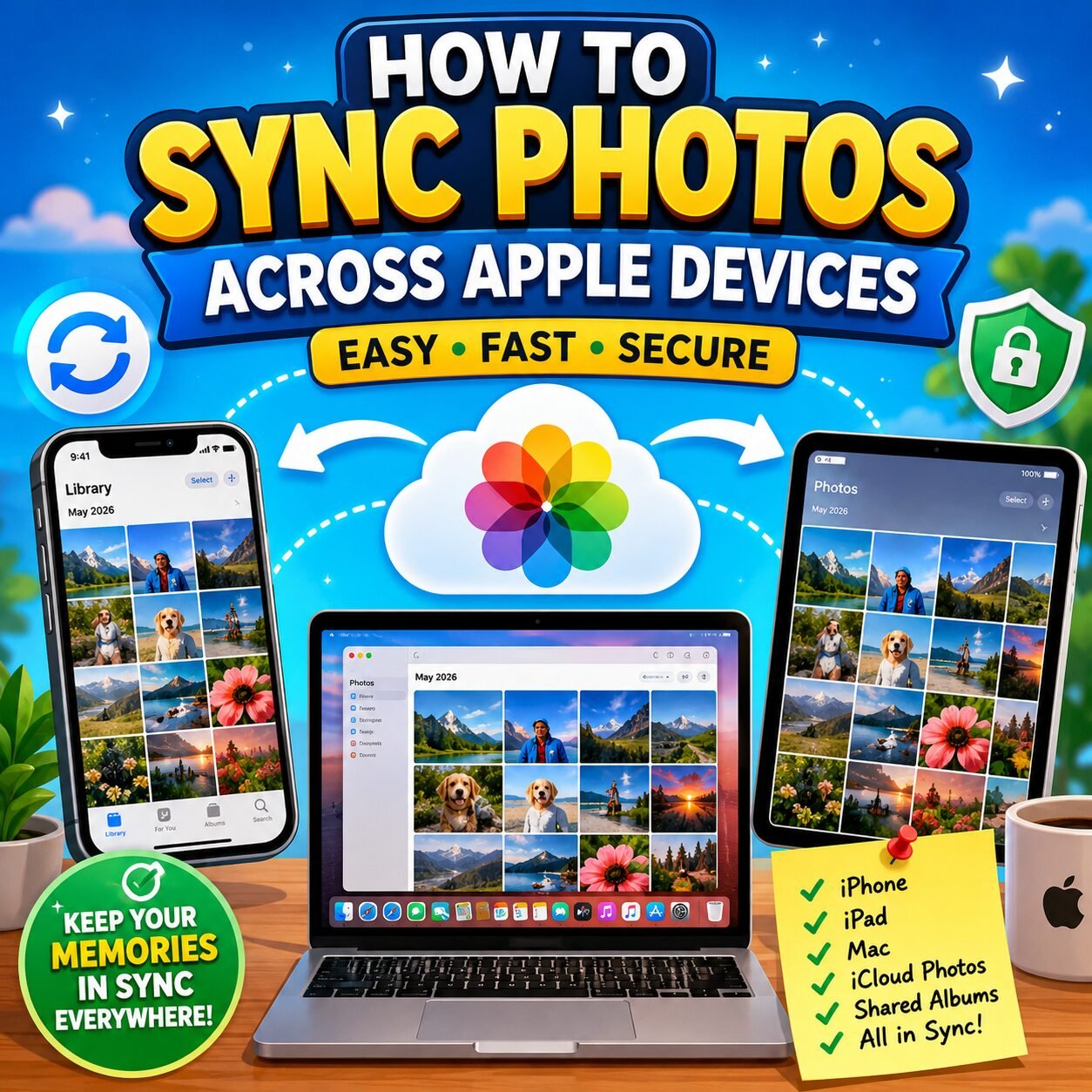
Taking a photo on your iPhone and then not seeing it on your iPad or Mac is one of the most common Apple frustrations out there. The good news is that once you understand how to sync photos across Apple devices, it takes about two minutes to set up, and it should just work in the background from then on.
This guide covers the current setup on iOS 26, iPadOS 26, and macOS Tahoe 26, which are the versions most Apple users are running as of mid-2026. I’ll walk you through turning on iCloud Photos correctly, explain the related features that often get confused with it (Shared Photo Library, Shared Albums, and the older My Photo Stream), show you how to manage the storage side of things, and cover the fixes that actually work when sync stops behaving.
What “Syncing Photos” Actually Means on Apple Devices
Before touching any settings, it helps to know that Apple actually has four different features that involve moving photos between devices, and mixing them up is where most people run into trouble.
iCloud Photos is the one most people mean when they say they want their photos to sync. It keeps a single photo library in iCloud, and every device signed into the same Apple Account sees the same library, in the same order, with the same edits and albums. This is what the rest of this guide focuses on.
iCloud Shared Photo Library is different — it’s a second, separate library that you and up to five other people can all add to and edit together. Think of it as a joint family album that behaves like a full library, not your personal one.
Shared Albums are much more limited. You pick specific photos and share just that album with specific people, without touching your main library at all.
My Photo Stream is a legacy feature from before iCloud Photos existed. Apple has phased it out in favor of iCloud Photos, so if you’re setting things up fresh in 2026, you won’t need it.
If you’d rather skip the cloud entirely and move photos over manually, Apple’s own guide on syncing photos via Finder walks through connecting your device with a cable and copying files across directly — a fine option if you don’t want your library living in iCloud at all, though you’ll lose the automatic, always-up-to-date behavior the rest of this guide covers.
iCloud Photos vs. Shared Photo Library vs. Shared Albums vs. My Photo Stream
| Feature | What it syncs | Who sees it | Counts toward your storage? |
|---|---|---|---|
| iCloud Photos | Your entire personal library | Just you (unless you separately share) | Yes |
| Shared Photo Library | A separate joint library | You + invited participants | Yes, against the library creator’s plan |
| Shared Albums | Only the photos you add to that album | Anyone you invite to the album | Historically no, though Apple has been adjusting this — more on that below |
| My Photo Stream | Recent photos only, temporarily | Just you | No, but it’s a legacy feature being phased out |
Once you know which one you actually need, the setup itself is straightforward. For most people, that’s iCloud Photos.
What You Need Before You Start
A few things need to be true before sync will work correctly:
- You’re signed in with the same Apple Account (formerly called Apple ID) on every device. If one device is on a different account, its photos will not appear anywhere else — this is by far the most common cause of “my photos aren’t syncing” complaints.
- Your devices are running compatible software. This guide assumes iOS 26 or later, iPadOS 26 or later, and macOS Tahoe or later, though iCloud Photos has worked in a similar way for several years.
- You have a stable Wi-Fi connection for the first sync, since uploading an entire photo library over cellular can be slow and may hit data caps.
- You have enough iCloud storage for your library. Apple gives every Apple Account 5GB free, which fills up fast once you add photos and videos — more on choosing a plan later in this guide.
How to Turn On iCloud Photos (Step by Step)
The steps below match Apple’s official iCloud Photos setup guide, condensed and with the gotchas that guide doesn’t mention added in.
On iPhone or iPad
- Open Settings and tap your name at the top.
- Tap iCloud, then tap Photos.
- Turn on Sync this [device].
That’s it. Your photos will start uploading in the background whenever you’re connected to Wi-Fi.
On Mac
- Click the Apple menu, then System Settings.
- Click your name, then iCloud.
- Under Saved to iCloud, click Photos.
- Turn on Sync this Mac.
One thing worth knowing here: your Mac can only sync with whichever library is set as its System Photo Library. If you’ve ever merged photo libraries, imported an old library from another Mac, or use Photos for a specific side project, double-check that the library you want synced is actually the one macOS has marked as the system library. This trips up more people than you’d expect, especially after a Mac migration.
On Apple TV
- Open Settings, then Users and Accounts.
- Select your account, then iCloud.
- Turn on iCloud Photos.
On Windows PC
- Download and install iCloud for Windows if you haven’t already.
- Sign in with your Apple Account.
- Check the box next to Photos, then click Options to choose your preferences.
On iCloud.com
You can also view your synced library at iCloud.com by signing in with your Apple Account, though the browser experience is more limited than the native apps — it’s fine for checking a photo quickly, not for managing your whole library.
How Long Sync Takes — and How to Check Status
The first sync after turning on iCloud Photos can take anywhere from a few minutes to several hours, depending on your library size and internet speed. Subsequent syncs are much faster since only new photos and edits need to transfer.
To check progress, open the Photos app and scroll to the bottom of your Library view. You’ll see a status message there. If it says “Waiting to Sync” or “Uploading to iCloud Paused,” your device has lost its connection or paused the process — usually because of an unstable Wi-Fi network, low battery, or the app being in the background too long. Reconnecting to a stable network and giving it time to resume usually clears this up on its own.
Managing Storage: Optimize Storage vs. Download Originals
This is the setting that confuses people most, so it’s worth explaining what actually happens under the hood rather than just telling you which button to tap.
What “Optimize [Device] Storage” Actually Does
When this is turned on, your device keeps space-saving versions of your photos locally and only downloads the full-resolution original when you open it, edit it, or need to share it. The full-quality original always stays safely in iCloud. This is the setting most people should use, especially on smaller-storage iPhones and iPads, because it lets you keep a library far larger than your device’s storage would otherwise allow.
When to Choose “Download and Keep Originals” Instead
If you do a lot of offline editing, work somewhere with unreliable internet, or just prefer having every full-resolution file physically on your device, choose this option instead. It downloads and keeps full-quality originals of everything, which means you’ll need enough local storage to hold your entire library.
Tip: If you’ve ever had photos “disappear” after a macOS update, this setting is one of the first places to check. With Optimize Mac Storage turned on, originals that haven’t been downloaded yet can look missing when you’re offline — they’re not actually gone, your Mac just hasn’t pulled them down from iCloud.
How Much iCloud Storage You Actually Need
Apple includes 5GB free with every Apple Account, which realistically covers a small library at best. As of mid-2026, U.S. iCloud+ pricing runs from $0.99/month for 50GB up to $59.99/month for the largest tier, with a 200GB plan at $2.99/month being the practical sweet spot for most single users and small families. If you’re sharing a plan through Family Sharing, up to six people can draw from the same storage pool, which brings the effective cost down to roughly $0.50 per person on a 200GB plan.
If you’re outside the U.S., it’s worth checking current pricing directly on your Apple Account settings page — Apple has adjusted iCloud+ pricing in several regions during 2026, including Pakistan, due to currency shifts, so the numbers can differ from what you’ll see quoted in U.S.-focused articles. If you’re unsure how much space your existing photos and videos are taking up before you commit to a plan, allipsw.com’s iPhone storage calculator is a quick way to check.
iCloud Shared Photo Library: Syncing One Library Across Multiple People
Shared Photo Library is worth a closer look because it’s genuinely different from just turning on iCloud Photos, even though the settings live in a similar place.
How It Differs From Just Turning On iCloud Photos
iCloud Photos syncs your library across your devices. Shared Photo Library creates a second library that you and other invited people all contribute to and edit together, with everyone having equal permissions. It’s built for situations like a couple or family wanting one shared feed of photos from all their devices, rather than everyone maintaining separate libraries and manually sending photos back and forth. Apple’s Shared Photo Library documentation covers the full participant and permission rules if you want the details straight from the source.
Setting It Up and Choosing What Moves Over
You can set this up from Settings > [Your Name] > iCloud > Shared Library, where Apple walks you through inviting participants and choosing which existing photos, if any, to move into the shared library. You don’t have to move your entire personal library — you can select specific people, dates, or albums to include.
Automatic Sharing Rules
Once set up, you can choose how new photos get added going forward:
- Share Manually — you decide, photo by photo, what goes into the Shared Library.
- Share When At Home — photos taken at a location tagged as home automatically go to the Shared Library, which is useful for family photos without extra taps.
- A dedicated Shared Library button in the Camera app lets you send photos there directly as you shoot.
Storage Rules and What Happens If the Creator Runs Out of Space
This is an important limitation to know about upfront: if the person who created the Shared Library runs out of iCloud storage, nobody can add new content to it, and changes like edits, favorites, and metadata updates stop syncing until storage is freed up or the plan is upgraded. If you’re setting this up with family, it’s worth agreeing in advance who’s responsible for the storage plan.
Shared Albums: When You Just Want to Share Specific Photos
If you don’t need a fully joint library, Shared Albums are the lighter-weight option. You create an album, add specific photos, and invite people to view and optionally contribute to just that album — your main library stays completely separate.
How to Create and Add to a Shared Album
In the Photos app, go to the Albums tab, tap the add button, and choose New Shared Album. Name it, add the people you want to invite, then add photos the same way you would to any album.
Recent Changes to Shared Album Storage Rules to Know About
Historically, Shared Albums didn’t count against your personal iCloud storage at all, which made them a popular way to share large batches of photos without eating into your plan. Apple has been reported to be adjusting this behavior as part of recent updates, so if storage-free sharing was your main reason for using Shared Albums, it’s worth checking Apple’s current official documentation before assuming the old rules still apply — this is one of those details that’s genuinely still settling as of mid-2026.
Syncing Over Wi-Fi vs. Cellular Data
By default, iCloud Photos prefers Wi-Fi for uploading and downloading your library, which protects you from unexpectedly burning through a mobile data plan. You can adjust this under Settings > [Your Name] > iCloud > Photos, where there’s an option to allow syncing over cellular data as well. This is worth turning on only if you have a generous or unlimited data plan and want new photos to appear on other devices faster while you’re away from Wi-Fi.
Fixing Photos That Won’t Sync
If sync has stalled or a photo just refuses to show up on another device, work through these in order rather than jumping to the most drastic fix first.
Quick Checklist
- Confirm you’re signed into the same Apple Account on every device.
- Check your network connection — a weak or captive Wi-Fi network (like a hotel or airport login page) will silently block sync.
- Check your iCloud storage — if you’re at your limit, uploads stop until you free up space or upgrade your plan.
- Make sure your software is up to date, since Apple regularly ships sync-related fixes in point releases.
The System Photo Library Issue on Mac
As mentioned earlier, macOS can only sync with the library designated as your System Photo Library. If you have more than one Photos library on your Mac and the “wrong” one is currently open, syncing simply won’t happen for that library. You can check and change this in the Photos app under Photos > Settings > General.
Restarting the Photos Process or Device
If everything looks correctly configured but photos still aren’t moving, force-quitting and reopening the Photos app, or restarting the device entirely, resolves a surprising number of stuck-sync situations by clearing whatever process got stuck.
When to Check Apple’s System Status Page
Occasionally the problem isn’t on your end at all. Apple maintains a live system status page that shows outages for iCloud services, including Photos, so it’s worth a quick check before you spend time troubleshooting a problem that’s actually on Apple’s servers.
Common Mistakes to Avoid
- Using two different Apple Accounts across devices. This is the single most common reason photos don’t sync, and it’s an easy one to overlook if a device was set up separately or handed down from someone else.
- Confusing Shared Library with Shared Albums. Assuming you’re sharing “everything” with family when you’ve only set up a Shared Album (or the reverse) leads to real confusion about who can see what.
- Ignoring low iCloud storage warnings until sync silently stops working. Apple does warn you before you hit your limit, but it’s easy to dismiss the notification and forget about it.
Privacy and Security Tips for Synced Photos
Since syncing means your photos live in iCloud and are accessible across every signed-in device, it’s worth locking down the account itself. Turning on two-factor authentication is the baseline step, and it’s worth reading through allipsw.com’s guide on securing your Apple Account if you haven’t reviewed your account security in a while.
If you use Shared Photo Library, remember that every participant has equal editing permissions by default — anyone in the library can add, edit, or delete shared content, so only invite people you’d trust with that level of access.
For an extra layer of protection, Apple also offers Advanced Data Protection for iCloud, which extends end-to-end encryption to more of your iCloud data, including Photos. It’s optional and worth considering if privacy is a top priority for you, though it does add some friction when recovering your account if you ever lose access to your trusted devices.
Best Practices for Syncing Photos in 2026
- Use the same Apple Account on every device from day one.
- Choose Optimize Storage unless you have a specific reason to keep full-resolution originals locally.
- Check your iCloud storage usage every few months, especially after a big trip or event.
- If background sync is draining your battery more than expected, it’s worth reviewing allipsw.com’s guide on battery settings that affect background activity.
- Keep software updated, since Apple ships sync reliability fixes in regular point releases.
Frequently Asked Questions
Why aren’t my photos syncing across my Apple devices?
The most common cause is being signed into different Apple Accounts on different devices. After that, check your Wi-Fi connection, confirm you haven’t run out of iCloud storage, and make sure iCloud Photos is actually turned on for that specific device.
Do I need the same Apple ID (Apple Account) on all devices to sync photos?
Yes. iCloud Photos only syncs across devices signed into the same Apple Account. Different accounts will each have their own separate photo library.
What’s the difference between iCloud Photos and iCloud Shared Photo Library?
iCloud Photos syncs your personal library across your own devices. Shared Photo Library is a separate, joint library that you and other invited people can both contribute to and edit together.
Does turning on iCloud Photos delete photos from my iPhone?
No. It uploads your photos to iCloud and, depending on your storage setting, may keep space-saving versions locally while storing full-resolution originals in iCloud — your photos aren’t deleted, just stored more efficiently if you choose Optimize Storage.
How much iCloud storage do I need for photo syncing?
It depends on your library size, but a 200GB plan covers most single users and small families comfortably. Check your current photo and video storage usage first to estimate what you’ll actually need.
Can I sync photos without paying for iCloud storage?
You get 5GB free with every Apple Account, but that fills up quickly with photos and videos. Beyond that, you’ll need a paid iCloud+ plan to keep syncing your full library.
Why do my edited photos not show the edits on my other device?
This is almost always a sync delay or a storage/connection issue. Give it time on Wi-Fi, and check that both devices are signed into the same Apple Account and have iCloud Photos turned on.
Does iCloud Photos sync over cellular data by default?
No, it prefers Wi-Fi by default to avoid unexpected data usage. You can allow cellular syncing in Settings if you want photos to sync faster while away from Wi-Fi.
What happens to Shared Library photos if the creator runs out of storage?
No one can add new content, and changes like edits, favorites, or metadata stop syncing until the creator frees up space or upgrades their iCloud+ plan.
Can I sync iPhone photos to a Windows PC?
Yes, using iCloud for Windows. Install it, sign in with your Apple Account, and enable Photos to bring your iCloud library to your PC.
Is “Optimize Storage” safe to use, or will I lose full-quality photos?
It’s safe. Your full-resolution originals stay in iCloud; your device just keeps lighter local versions and downloads the original on demand when you need it.
How do I know if my photos have finished syncing?
Open the Photos app and scroll to the bottom of your Library view, where a status message shows current sync progress or confirms everything is up to date.
Conclusion
Getting your photos to sync across Apple devices really comes down to one setting — iCloud Photos, turned on with the same Apple Account everywhere — but knowing the difference between that, Shared Photo Library, and Shared Albums will save you a lot of confusion down the road. Once it’s set up correctly and you’ve picked a storage approach that fits how you actually use your devices, syncing photos across Apple devices becomes something you never have to think about again.