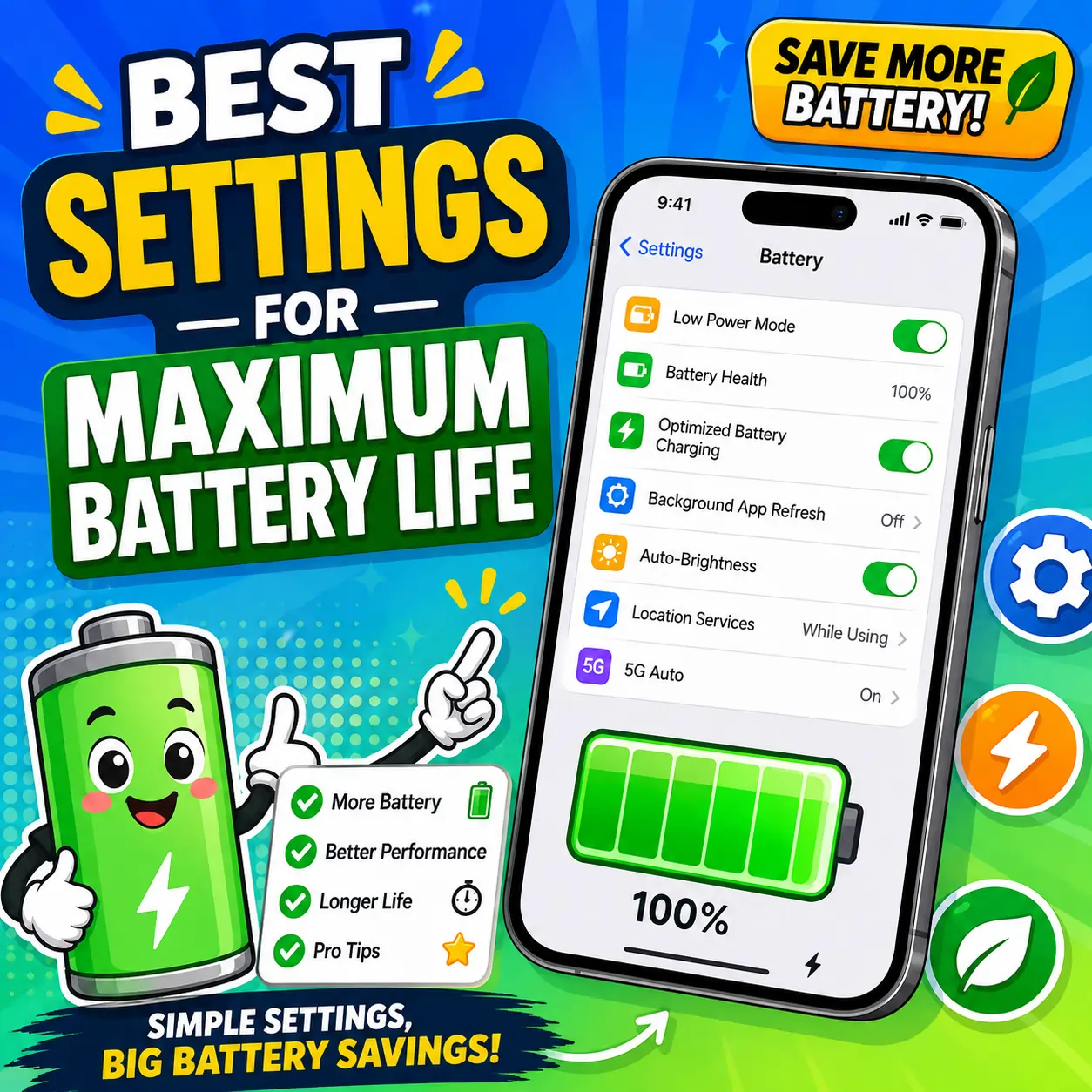
Best iPhone Settings for Maximum Battery Life (2026)
If your iPhone is dying by mid-afternoon even though you’re not doing anything unusual, the problem is almost never the battery itself — it’s usually a handful of settings quietly working against you. Finding the best settings for maximum battery life on iPhone means separating the changes that genuinely move the needle from the ones that are mostly folklore passed around in group chats.
This guide walks through exactly which settings matter on iOS 26, what each one actually does under the hood, and which popular “tips” you can safely ignore. It covers the current iPhone 17 lineup as well as older models, so whatever you’re carrying, you’ll know what to change and why.
How to Read Your iPhone’s Battery Signals First
Before changing anything, check what your iPhone is already telling you. iOS 26 does a lot of this diagnostic work for you, and skipping it means you might “fix” a setting that was never the problem.
The Daily Usage Chart
Open Settings > Battery and look at the Daily Usage chart near the top. It compares today’s battery drain against your average over the last seven days, so you can immediately tell whether something changed — a new app, a software update, or a genuinely faulty battery — rather than guessing.
Below the chart, you’ll see the three apps that used the most battery today. Tap any of them to see a day-by-day comparison. This is the fastest way to catch a runaway app before you start second-guessing your settings.
Battery Insights and Suggestions
Just above the Daily Usage chart, iOS 26 surfaces personalized suggestions when it notices something worth fixing — things like “Auto-brightness is off” or “your device is often idle and Auto-Lock is off.” These aren’t generic tips; they’re based on your actual usage, so they’re worth acting on before anything else in this guide.
Tip: Check Settings > Battery for Insights before making any other changes. Apple already knows which settings apply to your specific situation — there’s no reason to guess.
Power Modes Explained — Which One Should You Actually Use
iOS 26 gives you two very different tools for saving power, and a lot of people don’t realize they’re not interchangeable.
Adaptive Power Mode
Adaptive Power is new with iOS 26 and is powered by Apple Intelligence. Instead of asking you to make a trade-off, it quietly studies your battery drain rate and charging habits, then makes small adjustments on its own — slightly lowering brightness, letting some background tasks take a bit longer to finish, or easing off peak processor performance for a moment here and there.
It’s available on iPhone 15 Pro and later, and it’s turned on by default on the iPhone 17 Pro, iPhone 17 Pro Max, and iPhone Air. You can check or toggle it yourself under Settings > Battery > Power Mode.
Low Power Mode
Low Power Mode is the older, more aggressive option. Turning it on reduces or disables Mail fetch, “Hey Siri,” Background App Refresh, and some visual effects. It’s noticeably more effective in a pinch — say, when you’re at 15% with hours left in your day — but you’ll feel the trade-offs: slightly dimmer display, delayed mail, and a less snappy interface in some apps.
One useful detail: Low Power Mode automatically switches itself off once your iPhone charges back above 80%, so you don’t need to remember to turn it off.
| Feature | Adaptive Power Mode | Low Power Mode |
|---|---|---|
| Introduced | iOS 26 | Long-standing iOS feature |
| Device support | iPhone 15 Pro and later | All supported iPhones |
| How it works | Learns your habits, makes small automatic adjustments | Applies a fixed set of restrictions |
| Visual impact | Minimal, mostly unnoticeable | Noticeable (dimmer screen, delayed background tasks) |
| Best for | Everyday, ongoing battery management | Getting through the last stretch of a low-battery day |
| Turns off automatically | No — stays on until you disable it | Yes, above 80% charge |
Expert note: Adaptive Power and Low Power Mode aren’t competing options — they solve different problems. Adaptive Power is meant to run in the background all the time; Low Power Mode is for when you specifically need to stretch a low battery further.
Charging Settings That Protect Long-Term Battery Life
Runtime per charge and long-term battery health are two different goals, and charging settings are mostly about the second one. A lithium-ion battery chemically ages over time, and how you charge it has a real effect on how long it stays healthy.
Optimized Battery Charging
With Optimized Battery Charging on, your iPhone charges quickly up to about 80%, then pauses and waits, finishing the last 20% closer to when you typically unplug it. If you always unplug around 7 a.m., your phone might pause at 80% overnight and top off just before then.
This feature needs a consistent routine to work well. It learns your charging habits, so it’s most reliable where you charge most often — home or the office — and may not activate as consistently while traveling. If you need a full charge sooner than scheduled, you can override it: touch and hold the Lock Screen notification and tap Charge Now, or go to Settings > Battery > Charging > Resume Charging.
Clean Energy Charging
Clean Energy Charging works alongside Optimized Battery Charging, but instead of timing around your habits, it times around the local power grid. When it’s on, your iPhone checks a forecast of carbon emissions for your area and prefers to charge when cleaner energy is available. It’s on by default in the United States and requires Location Services (specifically Significant Locations & Routes) to function, though Apple notes this location data isn’t sent to Apple.
Like Optimized Charging, it only works where you charge for long, consistent periods, such as home or work — it won’t engage in a new or unpredictable location.
Setting a Charge Limit
On iPhone 15 and later, you can set a Charge Limit anywhere from 80% to 100% in 5% increments, under Settings > Battery > Charging. When the limit is set below 100%, Optimized Battery Charging isn’t needed since you’re capping the charge yourself — though iOS will occasionally still charge to 100% to keep its battery estimates accurate.
Whether a lower charge limit is worth the trade-off in daily convenience depends on your habits. If you rarely need a full 100% and mostly use your phone for a partial day before recharging again, a limit around 85–90% can meaningfully reduce the time your battery spends fully charged — one of the bigger contributors to long-term wear.
Checklist — ideal charging setup for most users:
- Optimized Battery Charging: On
- Clean Energy Charging: On (unless you’re regularly in a rush to charge)
- Charge Limit: 100% for most people, or 80–90% if you rarely need a full charge and want to reduce long-term wear
- Use an MFi-certified cable or charger
Warning: Turning off Optimized Battery Charging or Clean Energy Charging entirely will increase wear on your battery over time. There’s rarely a good reason to disable both unless you have a specific need to charge to 100% quickly and repeatedly.
Display Settings for Battery Savings
The display is one of the single biggest battery consumers on any phone, which is why this section has some of the highest-impact changes in the whole guide.
Auto-Brightness
If Auto-Brightness is off, this is likely the single most impactful change you can make. iOS 26’s own Insights feature will flag this directly if it applies to you. Manually keeping your screen brighter than necessary is one of the most common — and most fixable — sources of unnecessary drain. Turn it on under Settings > Accessibility > Display & Text Size > Auto-Brightness.
Dark Mode
On OLED displays (iPhone X and later — which covers essentially every current model), Dark Mode does save real battery, since black pixels use less power than lit ones. The savings are meaningful but smaller than what you’ll get from fixing brightness or background activity — think of it as a nice bonus, not a primary fix.
Always-On Display
Always-On Display keeps a dimmed version of your Lock Screen visible at all times, which does add to battery drain over a full day. If you already own an Apple Watch, you likely don’t get much practical value from Always-On Display, since you can check the time and notifications on your wrist instead — in that case, turning it off is an easy, low-cost win. If you don’t have a watch, it’s a genuine convenience trade-off worth deciding for yourself.
Auto-Lock
A short Auto-Lock timer (30 seconds is a common recommendation) means your screen isn’t staying lit unnecessarily when you set your phone down. This is another setting Insights will flag directly if your device is often idle with Auto-Lock disabled or set very long.
True Tone and Raise to Wake
These are worth mentioning because they’re often included in “battery saving” lists, but their actual impact is minor compared to brightness, Auto-Lock, and background activity. True Tone adjusts color temperature rather than overall brightness, and Raise to Wake’s brief screen wake events add up to very little over a day. Feel free to leave these on unless you’re chasing every last percentage point.
Background Activity Settings Worth Changing
This is where a lot of quiet, invisible drain happens — often more than people expect from apps they’re not even actively using.
Background App Refresh
Go to Settings > General > Background App Refresh to see every app allowed to refresh content while you’re not using it. You can set this to Off, Wi-Fi only, or Wi-Fi & Cellular Data — either globally or per app. Turning this off (or limiting it to Wi-Fi) for apps you don’t need updating in real time is one of the more effective, low-downside changes you can make.
Location Services
Go to Settings > Privacy & Security > Location Services and review which apps have access, and how much. Many apps default to “Always” or “While Using” access they don’t strictly need. Setting non-essential apps to “Never,” and reserving “While Using” for apps like maps or delivery tracking, cuts down on one of the more persistent background drains — GPS usage is genuinely power-hungry when it’s running continuously.
Push vs. Fetch Mail
Under Settings > Mail > Accounts > Fetch New Data, you can choose between Push (data arrives the moment it’s sent) and Fetch on a schedule (every 15, 30, or 60 minutes, or manually). Push is more convenient but keeps a connection active more of the time. If instant email isn’t essential for you, switching to a longer fetch interval — or manual fetch — is an easy, low-effort battery win.
“Hey Siri” Always-Listening
Having “Hey Siri” enabled means your iPhone’s microphone is always listening for the wake phrase, which does have a small but real battery cost. If you rarely use it hands-free, you can disable it under Settings > Apple Intelligence & Siri > Talk & Type to Siri and still trigger Siri manually with the side button.
| Setting | Estimated Impact | Convenience Trade-off |
|---|---|---|
| Background App Refresh | High | Apps update instantly vs. only when opened |
| Location Services (per-app) | High | Some location-based features become less automatic |
| Push vs. Fetch Mail | Medium | Instant email vs. slight delay |
| “Hey Siri” always-listening | Low–Medium | Lose hands-free wake phrase |
Connectivity Settings
5G Auto vs. 5G On vs. LTE
Under Settings > Cellular > Cellular Data Options > Voice & Data, you’ll typically see 5G Auto, 5G On, and LTE. 5G Auto is the sensible default for almost everyone — it uses 5G when it meaningfully improves your experience and falls back to LTE when it doesn’t, balancing speed and battery automatically. Forcing 5G On constantly can drain battery faster, especially in areas with weaker 5G coverage, without a proportional benefit in everyday speed.
Wi-Fi and Bluetooth
Leaving Wi-Fi and Bluetooth scanning on generally isn’t a major drain in isolation, since modern chips are efficient at this — including the N1 networking chip in the iPhone 17 lineup, which supports Wi-Fi 7, Bluetooth 6, and Thread. Where it does matter is in areas with poor or no signal, where your iPhone works harder searching for a connection. In those situations, Airplane Mode is more effective than toggling individual radios off.
AirDrop Visibility
Setting AirDrop to “Contacts Only” or “Receiving Off” instead of “Everyone” has a negligible direct battery effect, but it’s a reasonable privacy-adjacent habit that costs you nothing.
Widgets, Live Activities, and StandBy Mode
Lock Screen Widgets
The battery cost of Lock Screen and Home Screen widgets varies significantly depending on the app. A simple weather or calendar widget that updates occasionally is negligible; a widget constantly pulling live data (stock tickers, live sports scores) will cost more. If you suspect a specific widget, check its parent app under Settings > Battery for app-level usage.
Live Activities
Live Activities (like a food delivery tracker or sports score in the Dynamic Island) are genuinely useful but do keep a small amount of activity running while they’re live. They’re designed to end automatically, but if one seems to be lingering long after it’s relevant, you can dismiss it manually from the Lock Screen or Dynamic Island.
StandBy Mode
StandBy turns your iPhone into a bedside-style display when charging horizontally. Since it typically only activates while plugged in, its direct battery-life impact is minimal — the bigger consideration is whether you want your screen active for extended stretches while charging, which can contribute slightly to heat.
iPhone 17 Lineup — Does Your Model Change the Strategy?
The good news is that all iOS 26 battery-saving settings apply the same way across the current lineup — but the underlying hardware still matters for your day-to-day baseline. The iPhone 17 series brought real gains thanks to the A19 and A19 Pro chip efficiency and the new N1 networking chip.
| Model | Video Playback (Apple’s rated figure) |
|---|---|
| iPhone Air | Up to 27 hours |
| iPhone 17 | Up to 30 hours |
| iPhone 17 Pro | Up to 33 hours |
| iPhone 17 Pro Max | Up to 39 hours |
Apple doesn’t publish exact battery capacities, so these video-playback numbers (rather than raw mAh figures) are the most reliable way to compare real-world stamina across models. If you own an iPhone Air or any model with a smaller physical battery, the settings in this guide matter proportionally more, since you have less baseline capacity to work with. Adaptive Power Mode is on by default on the iPhone 17 Pro, iPhone 17 Pro Max, and iPhone Air specifically because these models benefit most from the extra help.
Common Mistakes That Actually Hurt Battery Life
- Disabling Optimized Battery Charging “to charge faster.” This does work in the moment, but it increases the time your battery spends fully charged, which accelerates long-term wear.
- Force-closing apps out of habit. As covered below, this doesn’t save battery and can occasionally use more energy than it saves.
- Ignoring Battery Health until it’s visibly degraded. Checking Settings > Battery > Battery Health periodically lets you catch declining maximum capacity early, rather than being surprised by it.
- Using uncertified cables or chargers. Non-MFi-certified accessories can deliver inconsistent power, which isn’t just a charging-speed issue — it can accelerate battery wear over time.
- Assuming a sluggish or fast-draining phone always means a bad battery. Sometimes the real issue is a stuck update, a misbehaving app, or even a device that won’t power on properly — in which case, no battery setting will fix it, and it’s worth ruling out a deeper issue like the ones covered in our guide to iPhone won’t turn on troubleshooting.
Myths vs. Facts
Myth: Closing background apps saves battery. Fact: This is one of the most persistent myths in the iPhone world, and Apple has addressed it directly — senior Apple executives have stated plainly that closing apps isn’t necessary and doesn’t help battery life. Apps you’re not using are suspended, not running, so they aren’t drawing power. Reopening them from scratch can actually use more energy than resuming them from suspension. The one exception is an app actively doing something in the background you no longer need — active navigation, a live call, or ongoing audio — which you can identify under Settings > Battery.
Myth: Full discharge cycles “calibrate” your battery. Fact: This applied to older battery chemistries, not the lithium-ion batteries in modern iPhones. Regularly draining to 0% doesn’t help and can add unnecessary stress.
Myth: Charging overnight always damages your battery. Fact: Optimized Battery Charging is specifically designed to prevent the main risk here — spending too long at 100%. With it enabled, overnight charging is a normal, well-managed part of daily use for most people.
Myth: 5G always drains battery faster than LTE. Fact: It depends heavily on signal strength and how 5G Auto is configured. In strong coverage areas, the difference is often small; in weak coverage, any connection type — including LTE — can work harder and drain faster while searching for signal.
Frequently Asked Questions
Does Low Power Mode damage my battery over time?
No. Low Power Mode is a software setting that reduces background activity and some visual effects — it doesn’t affect the battery’s underlying chemistry or long-term health. It’s safe to use regularly whenever you want extra runtime.
What’s the difference between Adaptive Power and Low Power Mode?
Adaptive Power makes small, mostly invisible adjustments automatically based on your habits and is meant to run continuously in the background. Low Power Mode applies a fixed, more noticeable set of restrictions and is meant for situations where you specifically need to stretch a low battery.
Does closing background apps save battery?
No. Apps not in active use are suspended and don’t consume battery. Manually closing and reopening them can use more energy than simply leaving them suspended.
Should I charge my iPhone to 100% every night?
With Optimized Battery Charging enabled, charging overnight is fine for most people, since the feature already manages how long your battery spends fully charged. If you want an extra layer of long-term protection and rarely need a full charge, setting a Charge Limit below 100% is a reasonable option.
Does 5G drain battery faster than LTE?
It can, particularly in areas with weak 5G coverage, but 5G Auto is designed to balance this automatically by falling back to LTE when 5G doesn’t offer a meaningful benefit.
Why does my battery drain faster after an iOS update?
This is often temporary. Background indexing, app re-optimization, and Spotlight re-indexing after an update can cause a few days of higher-than-normal drain before things settle back to your usual baseline. If drain continues well beyond a week or two, check Battery Health and the Daily Usage chart for anything unusual.
Is Dark Mode actually better for battery life?
On OLED displays, yes — black pixels use meaningfully less power than lit ones. It’s a real, if modest, improvement, and it’s most noticeable at higher brightness levels.
Key Takeaways
- Check Settings > Battery > Insights before changing anything else — Apple’s own suggestions are often the fastest fix.
- Turn on Auto-Brightness and set a short Auto-Lock timer; these are the highest-impact display changes for most people.
- Let Adaptive Power Mode run continuously in the background, and save Low Power Mode for when you actually need to stretch a low charge.
- Keep Optimized Battery Charging and Clean Energy Charging on; consider a Charge Limit below 100% only if you rarely need a full charge.
- Trim Background App Refresh and Location Services permissions per app rather than disabling everything.
- Stop force-closing apps — it doesn’t help, and can occasionally hurt.
Conclusion
Finding the best settings for maximum battery life on your iPhone isn’t about chasing every possible tweak — it’s about focusing on the handful that actually make a measurable difference: brightness, background activity, location permissions, and letting Apple’s charging and power features do their job instead of overriding them out of habit. Start with what Battery Insights tells you, adjust the settings covered here that fit your own usage, and you’ll likely notice a real difference within a day or two — without giving up the features that make your iPhone worth using in the first place. If you want to keep tuning your setup, our guide to hidden iPhone features worth enabling covers several more small changes that pair well with everything above.