Free Up iPhone Storage Without Deleting Important Files
A “Storage Almost Full” alert is stressful, especially when your phone holds years of photos, messages, and files. The good news is that you can often free up iPhone storage without deleting important files, as long as you work in a safe order.
Not every fix is equal. Some steps are reversible. iOS can offload an app and keep its data, or keep smaller photo copies on your phone while the originals stay in iCloud. Other steps are permanent, such as deleting an app’s data or shortening how long Messages keeps old texts. This guide starts with the safe steps and saves the risky ones for last.
It covers iOS 27, the current release, and points out where iOS 26 is different. Menus can vary by iPhone model, region, and account setup. No method here can promise a set amount of free space, because the result depends on what is filling your phone.
Quick Answer: The Safest Way to Free Up iPhone Storage
Follow this order:
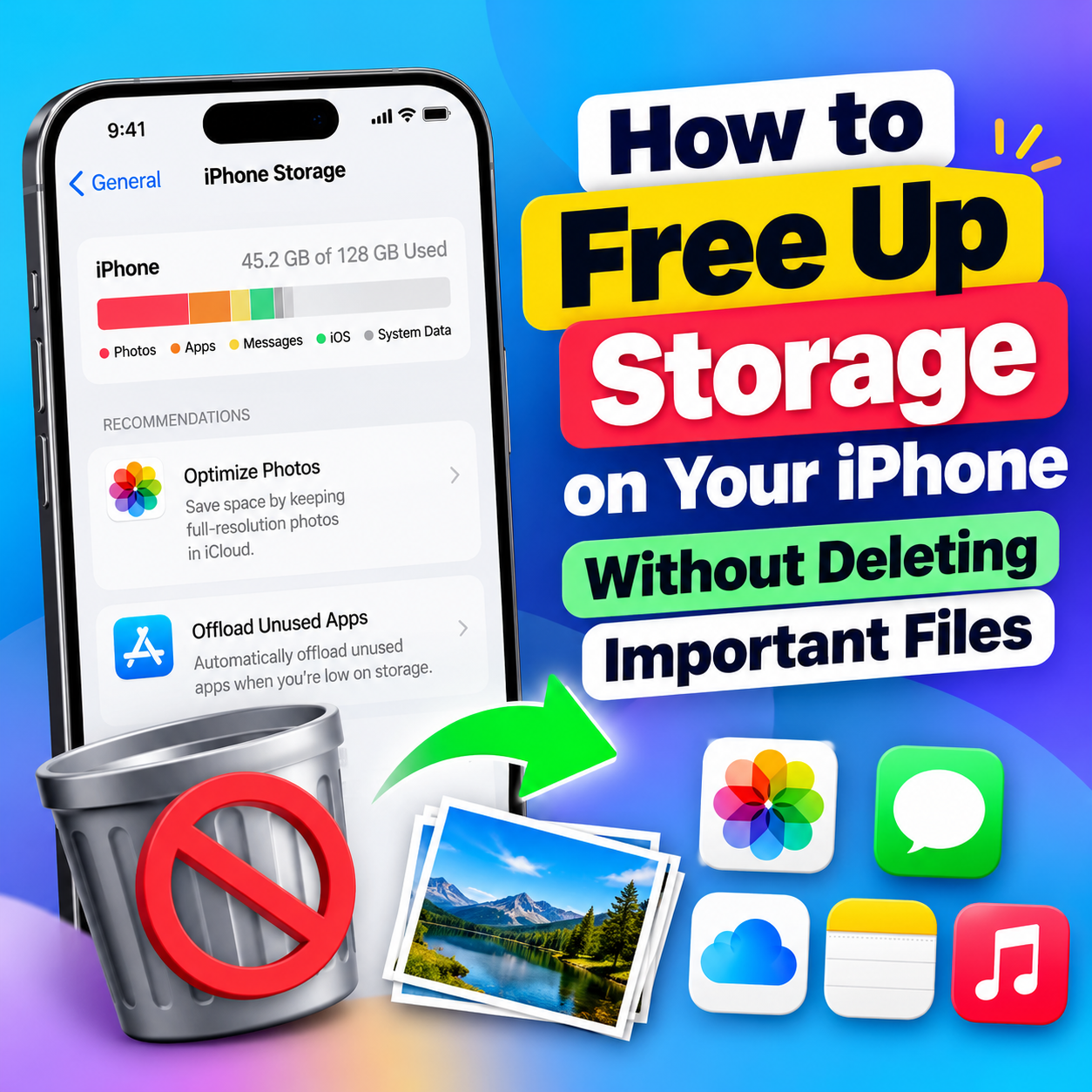
- Check what is using space in Settings > General > iPhone Storage.
- Confirm you have a recent backup before changing anything.
- Turn on Optimize iPhone Storage if you use iCloud Photos.
- Offload apps you rarely use instead of deleting them.
- Remove large Messages attachments that you pick yourself.
- Clear Safari website data if it is taking space, knowing it may sign you out of sites.
Deleting things comes last, not first.
iPhone Storage vs. iCloud Storage: What’s the Difference?
These are two separate things, and mixing them up is the most common reason people stay stuck.
iPhone storage is the physical space inside your phone. iCloud storage is online space tied to your Apple Account. When you set up iCloud, Apple gives you 5 GB for free, and you can pay for more with iCloud+.
| iPhone storage | iCloud storage | |
|---|---|---|
| Where it lives | Inside your phone | On Apple’s servers |
| Size set by | Your iPhone model | Your iCloud plan |
| What fills it | Apps, downloaded files, photos kept on the phone, system files | iCloud Backup, iCloud Photos, iCloud Drive, Messages in iCloud, iCloud Mail |
| Where to check | Settings > General > iPhone Storage | Settings > your name > iCloud |
Why buying more iCloud doesn’t free space on your phone
A bigger iCloud plan gives you more room online. It does not make your iPhone’s storage larger. It can help indirectly, though. If you use iCloud Photos, enough iCloud space lets your phone keep smaller copies of photos while full-quality originals stay online (more on that in Step 3).
How to tell which one is full
A “Storage Almost Full” alert on the phone points to iPhone storage. A message about iCloud storage, or a failed iCloud backup, points to iCloud. You can have one problem, the other, or both.
Step 1: See What Is Using Your iPhone Storage
Start by finding the biggest items. Apple’s guide to checking iPhone storage describes this screen. The same General path is used on iOS 27 and iOS 26.
- Open Settings.
- Tap General.
- Tap iPhone Storage.
- Look at the storage recommendations and the list of apps with their sizes.
- Tap an app’s name to see more detail. Apple notes that cached and temporary data might not count in an app’s usage.
This step changes nothing. It only shows you where the space went.
Read the categories
Apple groups storage into categories such as Apps, Photos, Media, Mail, Messages, and iCloud Drive (files you downloaded to the phone). Look for the largest one. That tells you which of the steps below is likely to matter most for you.
What “System Data” means (and what you can’t control)
You may see a category called Other, or hear people call it System Data. Apple describes it as non-removable items such as Siri voices, fonts, dictionaries, caches, logs, and other system files. There is also a System category for the operating system itself.
You can’t delete these by hand. Apple says the system removes cached and temporary files when the device needs space. Forum tips about restarting or updating to shrink System Data are not official, and they may not help. Be careful with any app or website that claims it can “clean” system files.
Step 2: Back Up Your iPhone Before You Change Anything
A backup is your safety net. Do this before any step that removes data.
Check your last iCloud Backup
- Connect to Wi-Fi.
- Open Settings, tap your name, then tap iCloud.
- Tap iCloud Backup.
- Check that Back Up This iPhone is on, and look at the date and time of your last backup.
Apple’s iCloud Backup instructions explain that iCloud Backup runs automatically when your phone is plugged in, on Wi-Fi, and locked. You can also tap Back Up Now and stay on Wi-Fi until it finishes. If you see an alert about not enough iCloud storage, the backup did not complete.
Make a computer backup if you want a second copy
You can also back up to a Mac or a Windows PC. Apple lists the options in its guide to backing up your iPhone. A second copy is a good idea if the files are hard to replace.
Keep in mind what a backup does and doesn’t cover
A backup is not the same as iCloud Photos. iCloud Photos keeps one synced library across your devices. Apple notes that if you don’t use iCloud Photos, your Photos Library is part of your iCloud Backup. So check which setup you actually have.
Your backup and iCloud data depend on your Apple Account, so it is worth knowing how to secure your Apple Account from hackers too.
Stop and check: If the backup did not finish, or your iCloud storage is full, do not continue to the permanent steps below. Fix the backup first.
Step 3: Free Space on Photos Without Losing Originals
Photos and videos are often the biggest storage users. This step is also where people most often lose files by accident, so read the warning first.
Warning: With iCloud Photos on, deleting a photo or video on one device deletes it on all your devices signed in with the same Apple Account, according to Apple’s iCloud storage guidance. Deleting is not a “free space on this phone only” button.
To understand why, it helps to know how photo synchronization works across Apple devices. With iCloud Photos, one library is shared by all your devices. Delete from one, and it goes from all.
Turn on Optimize iPhone Storage
Optimize iPhone Storage is the safer route. Your phone keeps smaller, space-saving versions of photos and videos, while the full-resolution originals stay in iCloud. Apple’s photo storage guide lists the steps.
On iOS 27:
- Open Settings, tap your name, then tap iCloud.
- Tap Photos.
- Make sure Sync this iPhone is on.
- Tap iPhone Storage.
- Make sure Optimize iPhone Storage is selected.
On iOS 26: Follow the same path to Photos, then choose Optimize iPhone Storage there. The extra iPhone Storage screen is new in iOS 27.
Some things to know:
- It frees iPhone storage, not iCloud storage. Your photos still use iCloud space.
- Apple says it optimizes your library when the device needs more space, starting with the items you open least. You may not see a big jump the moment you turn it on.
- It needs enough iCloud space. If iCloud is full, new photos and videos won’t upload.
- Originals can be downloaded again over Wi-Fi or cellular when you need them.
What “Download and Keep Originals” does
This is the opposite choice. It keeps full-size photos and videos on your phone and in iCloud. It gives you offline access to everything, but it uses much more space on the phone. If you are trying to free space, it is not the setting you want.
Deleting photos: what happens when iCloud Photos is on
If you decide to delete photos you truly don’t need, pick them yourself in the Photos app. Back up the ones you want to keep first. Deleted photos go to Recently Deleted, and Apple says you can recover them there for 30 days. If your iCloud storage is over its limit, Apple says deleted items are removed right away and can’t be recovered from Recently Deleted.
A note for iOS 27 and shared albums
Apple says that in iOS 27 and later, photos added to a shared album count toward the storage of the person who created the album. Photos deleted from a shared album are deleted immediately, so save a copy to your personal library first. This affects iCloud storage, not the space on your phone.
Step 4: Offload Apps Instead of Deleting Them
Apps and their data can take a lot of room. Offloading is safer than deleting.
Offload App vs. Delete App
According to Apple, offloading removes the app but keeps its documents and data. Deleting removes the app and its related data. Some apps keep information only on your phone, so deleting them can cause real loss. Do not assume every app’s data can be recovered.
How to offload a single app
- Go to Settings > General > iPhone Storage.
- Tap the app you want to offload.
- Tap Offload App.
If the app is still available later, you can download it again and pick up where you left off, because its data was kept. An app that has been removed from the App Store may not come back, so be careful with those.
Offload Unused Apps (automatic)
On the iPhone Storage screen, tap Show All to see Apple’s recommendations. If you see Offload Unused Apps, you can read the description and tap Enable. Your iPhone then offloads apps you don’t use, and keeps their data.
Step 5: Trim Messages Attachments Safely
Photos, videos, and files in conversations can pile up. Handle this one carefully.
Review large attachments
Per Apple’s steps for deleting attachments, on iOS 26 and later:
- Open a conversation and tap the contact’s name at the top.
- Tap Photos.
- Tap Edit, then Select Photos.
- Tap the images you want to remove.
- Tap Delete, then Delete Attachment to confirm.
Only remove what you are sure about. If you use Messages in iCloud, the texts and attachments use your iCloud storage, so deleting them can free iCloud space too. That also means the deletion is not just local.
Why shortening how long Messages keeps old texts is risky
iPhone has a setting in Messages that deletes old messages automatically after 30 days or one year. When you switch it on, it removes older messages and attachments permanently. This is easy to regret if you have photos, receipts, addresses, or conversations you want to keep. Unless you are certain, leave it on its default of keeping messages forever.
Warning: Do not shorten how long Messages keeps old texts unless you have saved anything you need. You can’t get those messages back through this setting.
Step 6: Clear Safari and App Caches
This can help a little, but don’t expect a large result.
Clear Safari history and website data
Apple’s page on deleting your Safari history, cache, and cookies gives these steps for iOS 27:
- Go to Settings, tap Apps, then tap Safari.
- Scroll down and tap Clear History and Website Data.
- Choose the time range, then tap Clear History.
To clear website data but keep your history, go to Safari > Advanced > Website Data and tap Remove All Website Data.
What happens to your logins
Website data includes information sites use to remember you. Clearing it can sign you out of sites. Apple says clearing history doesn’t change your AutoFill information. Save any unsent forms or drafts first.
App caches
Some apps have their own option to clear cached or downloaded content in their settings. Look there before deleting the whole app. Check what the option removes first, since offline downloads may need to be downloaded again.
Step 7: Make Room for Apple Intelligence (If You Use It)
If your iPhone supports Apple Intelligence, it needs storage on the device. Apple’s system requirements list up to 14 GB for iPhone 17 Pro, iPhone 17 Pro Max, and iPhone Air, and up to 8 GB for other Apple Intelligence-enabled iPhone models.
These are the figures Apple publishes, so don’t assume other numbers for other models. If you are not sure what the feature does, read our guide to Apple Intelligence features before deciding whether you want it taking up room.
Step 8: Move Large Files Out (Only After a Backup)
If you still need space after the steps above, move big files you want to keep to another place.
Move videos and files to iCloud Drive, a computer, or an external drive
Copy large videos or files to iCloud Drive, a computer, or external storage. Moving them to iCloud Drive uses iCloud space, so check your plan first. Apple also notes that if a file is optimized in iCloud Drive, it downloads to your phone before it is copied somewhere else.
Verify the copy before deleting the original
Use a simple rule: copy, check, then delete.
- Copy the file to the new place.
- Open it from the new place and make sure it plays or opens fully.
- Only then remove the original from your phone.
Warning: Never delete the only copy of something you care about.
What Not to Do When Your iPhone Storage Is Full
- Don’t delete photos with iCloud Photos on unless you have a backup and are sure you want them gone everywhere.
- Don’t shorten how long Messages keeps old texts without saving what you need.
- Don’t install “cleaner” apps that promise to wipe system files. Apple doesn’t offer a manual way to delete System Data, and these apps can’t be assumed to do what they claim.
- Don’t delete apps that may hold data only on your phone.
- Don’t assume buying more iCloud storage fixes a full phone.
- Don’t reset or erase your iPhone as a first fix.
If Your iPhone Storage Is Still Full
If you have done the steps above and the phone is still tight:
- Look at the categories again. Go back to Settings > General > iPhone Storage and see which one is still largest. That is where your next effort should go.
- Check from a computer. Apple explains that the Finder on a Mac, or the Apple Devices app on a PC, shows a storage bar broken down by content type. Cached files may show up as Other there.
- Review big videos. Long videos use far more space than photos. Back up the ones you want, then decide which to remove.
- Consider bigger changes last. Resetting or restoring a phone is a last resort. If you ever need it, make a full backup first and confirm it finished.
Does Freeing Storage Make Your iPhone Faster?
Maybe, but Apple doesn’t publish a speed claim for freeing storage, so don’t expect one. A phone that is almost full can feel cramped, yet many other things can slow an iPhone down, such as old software, battery condition, or a heavy app. If your main complaint is speed, see why your iPhone feels slow for other possible causes.
Frequently Asked Questions
Why does my iPhone say storage is full when I have iCloud?
iPhone storage and iCloud storage are separate. iCloud gives you space online, but it does not make the phone’s own storage bigger. Turn on Optimize iPhone Storage if you use iCloud Photos, offload unused apps, and review large attachments.
Will Optimize iPhone Storage delete my photos?
No. With iCloud Photos on, full-resolution originals stay in iCloud and smaller versions stay on your phone. This only works well if you have enough iCloud space and your photos have finished uploading.
Is it safe to offload an app?
Offloading removes the app but keeps its documents and data, according to Apple. It is much safer than deleting. You may still want a backup first, and an app that is no longer in the App Store might not be reinstallable.
Can I delete System Data?
Not directly. It includes caches, logs, and other system-managed files, and Apple says the system removes cached and temporary files when it needs the space. Be wary of tools that claim to clear it.
Does deleting photos from my iPhone delete them from iCloud?
Yes, when iCloud Photos is on. A deletion on one device applies to the others signed in with the same Apple Account. Back up what you want to keep first.
How long do deleted photos stay in Recently Deleted?
Apple says you can recover them for 30 days. If your iCloud storage is over its limit, Apple says deleted photos and videos are removed right away.
How much storage does Apple Intelligence need?
Apple lists up to 14 GB on iPhone 17 Pro, iPhone 17 Pro Max, and iPhone Air, and up to 8 GB on other supported iPhone models.
Conclusion
The safest way to free up iPhone storage is to go in order. Check what is using space, confirm your backup finished, and use reversible options first: Optimize iPhone Storage, offloading apps, and clearing browser data. Treat deleting photos, shortening Messages history, and removing app data as the last step, and only when you are sure.
Once you finish, open Settings > General > iPhone Storage again to see where you stand. If you are still short on space, copy large files somewhere safe, check the copy, and then remove the originals.