Why Is My iPhone So Slow? 15 Ways to Make It Faster
If you keep asking yourself why is my iPhone so slow, the answer is usually one of a few things: not enough free storage, a recent update still finishing its work, heat, Low Power Mode, an aging battery, or one misbehaving app. Sometimes it is simply an older phone running newer software.
The tricky part is that these causes look alike. Apps open late, scrolling stutters, and the keyboard lags, whatever the reason. So this guide starts with a short check to work out which kind of slow you have. Then it walks through 15 fixes, from the easiest and safest to the most serious.
A few honest notes before we start. Some fixes only help in certain situations. Some settings change how fast your iPhone feels more than how fast it actually is, and the guide says which is which. Stop as soon as your phone is back to normal. You do not need all 15.
Quick Answer: The Most Common Reasons an iPhone Slows Down
- Very little free storage. Apple says to keep at least 1 GB free to avoid slowdowns, and newer features may need more.
- A major update that just finished installing. iOS does background work for a while afterward.
- Heat or cold. A phone that is too hot or too cold protects itself by slowing some tasks.
- Low Power Mode. It trades speed and background activity for battery life.
- An aging battery. An older battery may not deliver peak power, and iOS can limit performance in response.
- One problem app. Sometimes the phone is fine and a single app is not.
- Older hardware. The oldest iPhones that run iOS 27 can feel their age.
Two popular fixes usually do not help: force-closing all your apps, and installing “cleaner” or “booster” apps. More on both below.
What Kind of Slow Is It? A 60-Second Check
Match what you see to the likely cause, then jump to the method that fits.
| What you notice | Likely cause | Try |
|---|---|---|
| Slow only for the first day or two after a big update, and the phone feels warm | Background work after the update | Methods 2 and 3 |
| Slow all the time, and you get “Storage Almost Full” alerts | Low storage | Method 3 |
| Only one app is slow or keeps crashing | App problem | Method 8 |
| Only web pages are slow | Network or Safari | The network check below, then Method 11 |
| Slow and hot to the touch | Heat | Method 5 |
| Slow only when the battery icon is yellow | Low Power Mode | Method 6 |
| Slow, battery drains fast, or the phone shuts down unexpectedly | Aging battery | Methods 7 and 15 |
| Choppy animations on an iPhone 11, 12, or 13 | Visual effects plus hardware limits | Method 10 |
| Taps register late or in the wrong place | Touch or screen issue | Method 1, then Method 15 |
| Photos is slow, or the phone is warm after a restore | Photos and iCloud activity | Method 12 |
Rule Out Your Network First
Before you blame the phone, check the connection. Test the same app or website on Wi-Fi and on cellular, and try a different spot in your home. Apple notes that slow performance can come from network congestion or from your phone reconnecting to cell towers as you move.
If the problem only shows up on one network or in one place, your iPhone is probably fine. A faster connection also does not make the phone itself faster. It only removes a delay that was never the phone’s fault. If cellular is slow in many places, contact your carrier.
15 Ways to Make a Slow iPhone Faster
The methods are ordered from easy and low risk to more serious. Each one says how likely it is to help.
1. Restart Your iPhone
Helps with: temporary glitches, a stuck process, or taps that feel off.
A restart gives iOS a fresh start. Apple does not claim that restarting makes an iPhone faster, so think of it as a quick first test rather than a performance upgrade. It is most useful when the slowness appeared suddenly.
To restart:
- On an iPhone with Face ID, hold either volume button and the side button until the power-off slider appears. On an iPhone SE (2nd or 3rd generation), hold the side button instead.
- Drag the slider and wait about 30 seconds for the phone to turn off.
- Hold the side button until the Apple logo appears.
Force restart (only if the phone is frozen): press and release Volume Up, press and release Volume Down, then hold the side button until you see the Apple logo. A force restart does not erase your data, but do not use it in the middle of an update or restore.
If the screen stays black after a force restart, see what to try when the screen stays black.
May not help if: the slowness has lasted for weeks. A restart will not fix full storage or a worn battery. If it is still slow, check whether you updated recently (Method 2) or are low on space (Method 3).
2. Give a Fresh Update Time to Finish Its Background Work
Helps with: slowness, warmth, and extra battery use in the first days after a major iOS update.
After a major update, your iPhone keeps working in the background. It rebuilds search indexes and finishes other jobs. Apple says a phone can feel warmer after a software update, especially a major one, and that this is normal. MacRumors reports that iOS 27 also rebuilt Apple’s search foundation, which affects Spotlight, Photos, and Mail.
What to do:
- Plug your iPhone in overnight and keep it on Wi-Fi.
- Avoid judging its speed during the first day or two.
- Then check Settings → General → Software Update for a point update. Apple has already released iOS 27.0.1, and more updates are in testing.
Many tech sites say this settling period lasts about 24 to 48 hours. That is a rough estimate, not an Apple promise. If the phone is still slow after several days, treat it as a different problem and move on to Method 3.
3. Free Up Storage and Keep Some Headroom
Helps with: a nearly full iPhone.
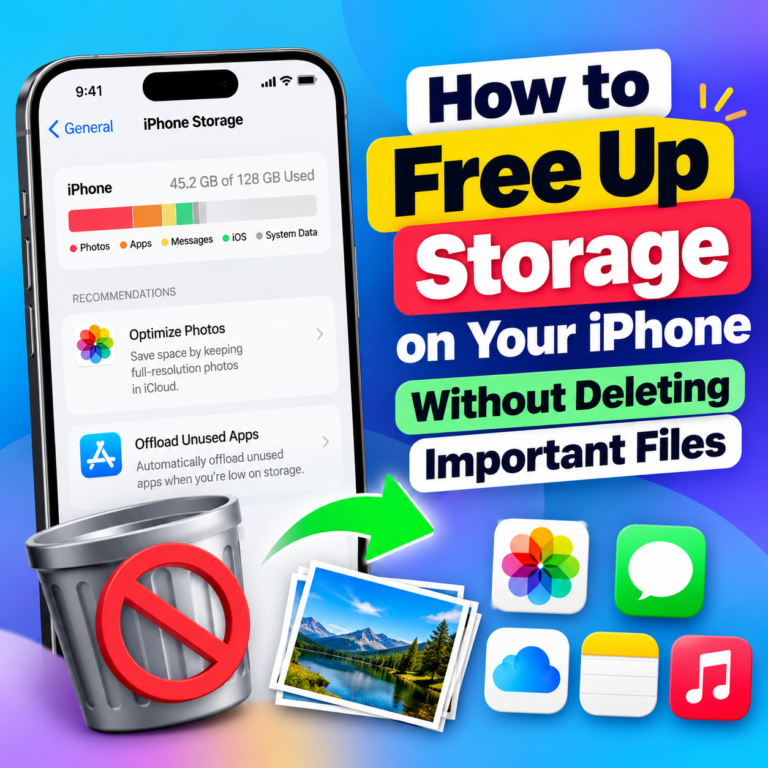
iOS uses free space for temporary files, caches, and updates. When space runs low, it clears some items on its own. Apple’s advice is to keep at least 1 GB free to avoid slowdowns. Below that, apps can take longer to open and updates may fail to install.
That is Apple’s floor, not a comfortable target. Some tech sites suggest keeping 10% free or more. That is practical advice, not an Apple rule.
Apple Intelligence changes the math. Apple’s requirements list up to 8 GB of storage for most supported iPhones, and up to 14 GB for the iPhone 17 Pro, iPhone 17 Pro Max, and iPhone Air. Reports say the iPhone 18 Pro models and iPhone Duo are in the same group, but check Apple’s current requirements page for your model. If you use Apple Intelligence features, leave room for them.
To see what is using space:
- Open Settings → General → iPhone Storage and wait for the list to load.
- Read the recommendations at the top, such as offloading unused apps.
- Tap an app to choose Offload App or Delete App.
Offloading removes the app but keeps its documents and data. Deleting removes both. Large videos, old message attachments, and downloaded shows or podcasts are common space-eaters.
Warnings: Back up photos and videos you cannot replace before deleting. If iCloud Photos is on, deleting a photo on your phone deletes it from iCloud too. Apple also says cached and temporary data may not show as app usage, and that the system clears it by itself, so you do not need to hunt for it.
May not help if: you already have several gigabytes free. Extra free space does not guarantee a noticeable speed gain.
4. Update iOS and Your Apps
Helps with: known bugs, and apps that have not caught up with a new iOS version.
Point updates fix bugs. For example, Apple’s iOS 27.0.1 update addressed a problem where the touchscreen could stop responding when Notification Center and Control Center were opened together. Apple also says iOS 27 focuses on performance and was tested on older hardware such as the iPhone 11 Pro Max. Treat those as Apple’s own claims. Your results will vary by model and how full your phone is.
To update:
- Go to Settings → General → Software Update.
- Open the App Store, tap your profile picture, and update your apps.
iOS 27 runs on the iPhone 11 and later, including the iPhone SE (2nd and 3rd generation). The iPhone XS, XS Max, and XR cannot run iOS 26 or 27. They stay on the iOS 18 line, so install the latest iOS 18 update they offer.
Warnings: Back up first. Updates need free storage and a charged battery. If you updated recently and the phone feels slow, give it time (Method 2). Do not count on going back to an older iOS version, because Apple usually stops allowing it soon after a new release.
5. Let a Hot or Cold iPhone Return to Normal
Helps with: slowness during heavy use, charging, or time in the sun or a car.
When an iPhone gets too hot, it protects itself. Apple says charging can slow or stop, the display can dim, and some apps run at lower frame rates. Apple designs iPhones for room temperatures between 0 and 35 °C (32 to 95 °F). Cold can reduce performance and battery life too.
What to do:
- Stop heavy use, such as games, navigation, or long camera sessions.
- Move the phone out of direct sun and out of a parked car.
- Take it off a wireless charger.
- Let it return to normal temperature on its own.
If a temperature warning screen appears, turn the phone off and let it cool. Do not put it in a fridge or freezer. That is our advice, not an Apple instruction, but sudden temperature swings are not good for electronics.
May not help if: the phone runs hot even when you are not using it. That points to a battery or hardware problem (Method 15).
6. Turn Off Low Power Mode
Helps with: slowness while the battery icon is yellow.
Low Power Mode saves battery by doing less. Apple says it turns off some visual effects, Background App Refresh, automatic downloads, and email fetch, and it pauses iCloud Photos for a while. It also dims the screen and shortens Auto-Lock. Those trade-offs can make the phone feel slower.
To turn it off:
- iPhone 15 and later: Settings → Battery → Power Mode, then turn Low Power Mode off.
- iPhone 14 and earlier: Settings → Battery, then turn Low Power Mode off.
- Either way: tap the battery icon in Control Center.
Low Power Mode turns itself off when you charge past 80%. On supported phones, Adaptive Power can also switch it on when the battery drops below 20%. This guide on how Adaptive Power and Low Power Mode differ shows when each makes sense.
Warning: Your battery will drain faster with it off. If you need the phone fast right now, charging it is often a better fix.
7. Check Battery Health
Helps with: finding out whether an aging battery is limiting performance.
All rechargeable batteries wear out. As a battery ages, it may not be able to deliver a quick burst of power, especially when it is low or cold. Apple says iOS can then manage performance to prevent unexpected shutdowns, and you may notice longer app launches, lower frame rates, a dimmer screen, or quieter speakers. On the iPhone 11 and later, Apple describes an automatic system that reduces these effects as much as it can.
This step is a check, not a fix. The fix is in Method 15.
To check:
- iPhone 15 and later: Settings → Battery → Battery Health. You will see maximum capacity, whether a replacement is recommended, cycle count, and dates.
- iPhone 11 to 14: Settings → Battery → Battery Health & Charging. You will see maximum capacity and peak performance capability.
If you see a message that performance management has been applied, or that your battery is significantly degraded, a battery replacement may help. Apple says the “degraded” message is not a safety warning.
Warnings: Do not try to turn off performance management to get speed back. Apple says some of this protection is built in and cannot be turned off, and on older models, switching it off can bring back unexpected shutdowns. Also, a lower percentage does not automatically mean a slow phone. Apple designs iPhone 14 and earlier batteries to keep 80% capacity at 500 full charge cycles, and iPhone 15 and later at 1,000, under ideal conditions.
8. Find the One App That Is Slowing Things Down
Helps with: a single app that is slow, crashes, or drains the battery.
If only one app misbehaves, the phone is probably fine. Apps can lag behind a new iOS release, especially banking, messaging, and game apps right after a major update.
Try this in order:
- Open Settings → Battery and see which apps used the most power.
- Update the app in the App Store.
- If the app is frozen, swipe up from the bottom of the screen, find it, and swipe up on its preview to close it. Do this for that one app only.
- Open Settings → General → iPhone Storage, tap the app, and choose Offload App. Then reinstall it. This keeps its documents and data.
- If it still fails, delete and reinstall it, or contact the developer.
Warning: Deleting an app removes its data. Make sure anything important is synced or backed up first.
May not help if: every app is slow. In that case, keep going.
9. Cut Background Activity (Without Force-Closing Everything)
Helps with: apps refreshing in the background, which can add load after an update.
Background App Refresh lets apps update their content when you are not using them. Low Power Mode turns it off, which shows Apple treats it as extra background work. Apple does not say that switching it off speeds up the phone. Expect a small effect, with a better chance of helping battery life and heat.
To adjust it:
- Open Settings → General → Background App Refresh.
- Choose Off, Wi-Fi, or Wi-Fi & Cellular Data, or switch off apps you rarely use one by one.
Notifications or fresh content may arrive later for apps you turn off.
A common myth: you do not need to force-close all your apps. Apple says closing apps unnecessarily can slow your device, because each app has to reload everything when you open it again. Closing an app also does not necessarily free memory that matters. iOS manages memory on its own. Close an app only when it is frozen.
10. Tone Down Liquid Glass and Motion Effects
Helps with: choppy animations and scrolling, mostly on older iPhones such as the iPhone 11 to 13.
Liquid Glass, the see-through design that arrived in iOS 26, adds translucency and flowing effects. BGR reports that older iPhones can struggle with them. Apple has not published speed numbers for these settings, so here is the honest version. They reduce visual work and often make the phone feel quicker. They do not make apps load faster or add processing power.
What to try:
- iOS 27: Apple added a Liquid Glass slider that sets how see-through the interface is. The menu name has been reported under Appearance or Liquid Glass, so if you cannot find it, search Settings for “Liquid Glass.”
- iOS 26.1 and later: Settings → Display & Brightness → Liquid Glass, then choose Tinted instead of Clear.
- Settings → Accessibility → Display & Text Size → Reduce Transparency replaces see-through backgrounds with solid ones.
- Settings → Accessibility → Motion → Reduce Motion tones down animations.
Liquid Glass cannot be turned off completely, and every one of these changes can be undone. If you want a few more options like these, here are more accessibility settings worth knowing.
May not help if: your phone is slow because of storage, heat, or the battery. Treat this as a finishing touch, not a main fix.
11. Fix Slow Safari
Helps with: slow browsing when other apps work fine.
Many open tabs, heavy web pages, and extensions can all slow Safari. Website data also takes up storage. MacRumors reports that Safari is more power-efficient in iOS 27.
Try this:
- Close tabs you no longer need.
- Clear stored data: Settings → Apps → Safari → Clear History and Website Data in recent iOS versions. For a gentler option, remove data for specific sites under Advanced → Website Data.
- Turn off extensions or content blockers one at a time to see if one is the cause.
- Compare Wi-Fi and cellular, as in the network check above.
Warnings: Clearing website data signs you out of sites, and it may clear history on your other devices that use the same Apple Account. There is no strong evidence that clearing the cache makes the whole phone faster, so do not expect it to fix anything outside Safari.
12. Check iCloud Photos and Sync Activity
Helps with: a phone that is slow and warm because Photos or iCloud is busy.
A big photo library can keep your iPhone busy after a restore from backup, a new sign-in, or a major update. Apple says a phone may feel warmer when you restore from a backup, and that this is normal. Low Power Mode also pauses iCloud Photos, which can stretch out a sync.
What to do:
- Keep your iPhone on Wi-Fi and plugged in, and let syncing finish.
- Open Photos and scroll to the bottom of Library, where it usually shows whether it is syncing or paused.
- In your Photos settings, choose between Optimize iPhone Storage and Download and Keep Originals. The first saves space. The second keeps full-size copies on the phone.
Warnings: Do not turn off iCloud Photos just to speed things up. Check your iCloud storage first, and remember that deleting a photo on one device can delete it everywhere.
May not help if: syncing is already done. Then move on.
13. Reset All Settings (Your Data Stays)
Helps with: odd lag that survived the earlier steps, possibly from a setting that went wrong.
Reset All Settings returns system settings to their defaults. It does not delete your photos, apps, or files. It is a low-risk test before the bigger step in Method 14. There is limited evidence that it fixes slowness, so treat it as a try-it-and-see option.
To do it:
- Go to Settings → General → Transfer or Reset iPhone → Reset.
- Tap Reset All Settings and enter your passcode.
Warning: You will need to set preferences again, and some saved items, such as Wi-Fi passwords, may need to be re-entered. Do not confuse this with Erase All Content and Settings, which wipes the phone. If you want to be careful, back up first.
14. Back Up, Then Erase and Set Up Again
Helps with: slowness that nothing else fixed, when the cause may be damaged software.
This is the last software step, and it is a big one. A clean setup can clear up software problems that built up over time. Be realistic about it, though. The evidence is limited, it will not fix a worn battery or old hardware, and restoring a full backup can bring the same problem back.
Before you start:
- Back up your iPhone to iCloud or a computer, and make sure the backup finished.
- Make sure you know your Apple Account password and can receive your two-factor codes.
Then follow Apple’s steps for erasing an iPhone, which start at Settings → General → Transfer or Reset iPhone → Erase All Content and Settings. After it restarts, you can restore from your backup or set up as new. Setting up as new and adding apps slowly is a good way to test whether an app or old setting was the problem.
Warning: Erasing removes everything on the phone.
If your iPhone will not start normally, for example it sticks on the Apple logo, you may need Recovery Mode on a computer. Choose Update before Restore, because Restore erases your data. Here is the difference between Recovery Mode and DFU Mode. DFU Mode is a deeper step that always erases the phone, so only use it if Recovery Mode fails.
15. Repair or Upgrade: Battery, Touch, and Aging Hardware
Helps with: slowness that remains after everything above.
Software fixes cannot beat hardware limits. Apple says a battery replacement can help when an aged battery is affecting performance, and that a touch screen that responds incorrectly can make a phone seem slow. Older chips also handle newer software less smoothly. The iPhone 11 is the oldest model iOS 27 supports.
What to do:
- Revisit Battery Health (Method 7). If Apple recommends a replacement or says the battery is significantly degraded, book battery service with Apple or an Apple Authorized Service Provider.
- Check your warranty or AppleCare coverage. Apple’s one-year warranty covers a defective battery.
- If touch problems survive a restart, use Apple’s service options.
Here is a simple way to decide:
| Your situation | A reasonable next step |
|---|---|
| iPhone 12 to 15 with a degraded battery, otherwise fine | Battery service first |
| Battery is fine, clean setup done, still slow, and storage is always full | More storage, or a phone with more room |
| iPhone 11 or SE (2nd generation), slow after every step | Think about upgrading. The hardware is at the edge of what iOS 27 supports. |
| iPhone XS, XS Max, or XR | These cannot run iOS 27, so plan to upgrade as apps drop support |
| Hot while idle, a swollen case, or random shutdowns | Stop using it and contact Apple Support |
Warnings: Use Apple or an authorized provider. Apple says a battery it cannot verify as genuine can trigger an “Unable to verify” message. Do not try jailbreaking or unofficial “performance hacks.” Repair prices change by model and region, so check Apple’s site rather than trusting an old number.
A new battery will not make an old iPhone act like a new one. It can remove the battery’s part in the slowdown, which for many phones is the biggest part.
Common Speed-Up Myths That Waste Your Time
“Close all your apps to speed up your iPhone.” Apple says unnecessary force-closing can slow things down because apps have to reload. Close an app only if it is frozen.
“Cleaner and booster apps will fix it.” iOS manages cache and temporary files on its own, and Apple says it clears them when it needs space. Many of these apps push subscriptions and scary warnings. The built-in iPhone Storage screen does the useful part for free.
“Deleting apps makes the phone faster.” It only helps if it frees real storage. Offloading does the same job and keeps your data.
“Apple slows down every old iPhone on purpose.” What Apple documents is battery-related performance management, meant to prevent unexpected shutdowns. For iOS 27, Apple says it has worked on performance for older supported iPhones.
“Reduce Motion doubles your speed.” It reduces animation, which can make the phone feel quicker. There is no Apple figure showing a real speed gain.
Frequently Asked Questions
Why is my iPhone suddenly so slow?
The usual suspects are nearly full storage, an update that just finished, heat, Low Power Mode, or one app. Use the check near the top of this guide to match your symptom to a fix.
Does low storage make an iPhone slow?
It can, once space gets very low. Apple says to keep at least 1 GB free to avoid slowdowns. If you use Apple Intelligence, you may need more (up to 8 GB on most supported iPhones, and up to 14 GB on some newer models).
Does battery health affect iPhone speed?
It can. As a battery ages, it may not deliver peak power, and iOS can limit performance to prevent unexpected shutdowns. Check Battery Health in Settings, and see Method 7.
Why is my iPhone slow after an iOS update?
Right after a major update, iOS keeps working in the background, and the phone may feel warm and slow for a day or two. If it is still slow after several days, check storage, apps, and battery health.
Does restarting an iPhone make it faster?
It can clear up temporary glitches. Apple does not claim a speed boost, and a restart will not fix full storage or an old battery. Use a force restart only if the phone is frozen.
Should I close apps on my iPhone?
Usually not. Apple says closing apps unnecessarily can slow your device. Close one only if it stops responding.
Do iPhone cleaner or booster apps work?
There is no good reason to expect they will. iOS handles cache and memory itself, and many of these apps rely on subscriptions. Use Settings → General → iPhone Storage instead.
When should I reset or replace my iPhone?
Try Reset All Settings first, and erase the phone only after a backup. If Battery Health shows a degraded battery, consider a replacement. If your phone is one of the oldest supported models and still slow after a clean setup, upgrading may make more sense. See Method 15.
Bottom Line
Do not change ten settings at once. Work out what kind of slow you have, fix that cause, and stop when the phone feels normal.
For most people, the best returns come from a short list: keep some free storage, install updates, give a new update a day or two, avoid heat, and turn off Low Power Mode when you need speed. Check Battery Health every few months so a worn battery does not surprise you.
If you have worked through the steps and the phone is still slow, the cause is probably the battery, the touch screen, or the age of the hardware. That is when Apple Support or an authorized repair is the right next move, and sometimes a newer phone is the better choice.